
On this page
- 1. MSI Gaming Laptop Overheating Diagnosis
- Common Overheating Symptoms
- Essential Diagnostic Tools
- Normal vs. Dangerous Temperatures
- 5-Minute Preliminary Checks
- Troubleshooting Flowchart
- 2. MSI Gaming Laptop Fan Replacement Guide
- Compatible Replacement Fans
- ⚠️ Safety Precautions
- Required Tools
- Step-by-Step Replacement
- Post-Installation Testing
- Common Issues & Solutions
- Resale Value Tip
- Video Guide: MSI Gaming Laptop Fan Replacement & Cooling Fix
- Step-by-Step Video Timestamps
- 3. MSI Gaming Laptop Thermal Paste Application Guide
- Recommended Thermal Compounds
- Preparation Steps
- Application Methods
- MSI-Specific Tips
- Post-Application Protocol
- Common Mistakes & Fixes
- 4. MSI Gaming Laptop Deep Cleaning Guide
- Recommended Cleaning Schedule
- Essential Cleaning Tools
- Step-by-Step Cleaning Process
- High-Risk Areas
- Post-Cleaning Verification
- Resale Value Impact
- 5. MSI Gaming Laptop Post-Repair Performance Testing
- Why Testing Matters
- Essential Testing Tools
- Standard Testing Protocol
- Healthy Performance Targets
- Resale Documentation
- Common Post-Repair Issues
- 6. MSI Gaming Laptop Resale Value Optimization
- Where to Get Accurate Valuations
- SEO-Optimized Listing Strategies
- Top Value Boosters
- Where to Sell for Maximum Value
- Research-Backed Pricing Tips
- Professional Selling Tactics
- Need to Sell Your MSI Laptop? Get Instant Cash!
1. MSI Gaming Laptop Overheating Diagnosis
Common Overheating Symptoms
-
Performance Issues:
- Sudden FPS drops during gaming
- Throttling (clock speed reductions)
- Unexpected shutdowns
-
Physical Signs:
- Keyboard uncomfortably hot to touch
- Constant fan noise at idle
- Heat coming from vents during light use
Essential Diagnostic Tools
-
Temperature Monitoring:
- MSI Dragon Center (official software)
- HWInfo (detailed sensor data)
-
Stress Testing:
- 3DMark Time Spy (GPU focus)
- Prime95 (CPU stress test)
Normal vs. Dangerous Temperatures
| Component | Safe Range | Danger Zone |
|---|---|---|
| CPU (Intel/AMD) | 70-85°C under load | >95°C |
| GPU (Nvidia) | 75-87°C under load | >93°C |
5-Minute Preliminary Checks
- Verify fan operation (listen for unusual noises)
- Check air vents for blockages
- Monitor idle temperatures (should be 45-60°C)
Troubleshooting Flowchart
-
If high idle temps:
- Check background processes
- Reapply thermal paste
-
If high load temps only:
- Clean cooling system
- Consider cooling pad
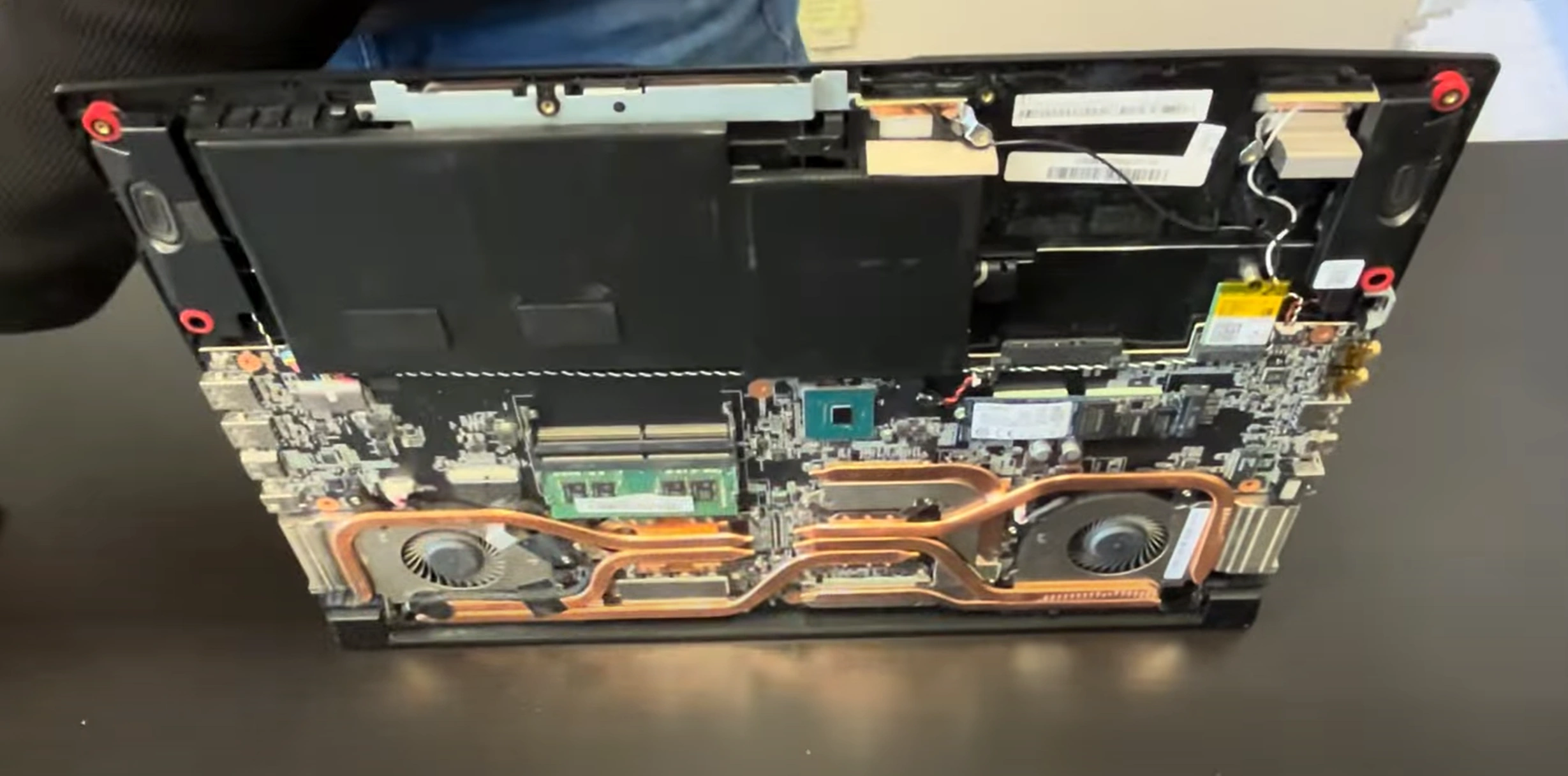
2. MSI Gaming Laptop Fan Replacement Guide
Compatible Replacement Fans
⚠️ Safety Precautions
- Disconnect battery before starting
- Ground yourself with anti-static wrist strap
- Allow laptop to cool completely
Required Tools
- Phillips #00 screwdriver (magnetic tip preferred)
- Plastic spudger set (0.5mm and 1.0mm)
- Tweezers (for ribbon cable connectors)
Step-by-Step Replacement
-
Access Fans:
- Remove 11 bottom case screws (4 long, 7 short)
- Use plastic tool to release clips starting from rear vents
-
Remove Old Fans:
- Disconnect fan cables (note orientation)
- Unscrew 6 fan mounting screws (T5 Torx)
- Lift fans straight up to avoid damaging fins
-
Install New Fans:
- Align screw holes perfectly
- Secure with original screws (0.5Nm torque)
- Reconnect cables until they click
Post-Installation Testing
- Reconnect battery and power on
- Check MSI Dragon Center fan control
- Verify RPM readings in HWMonitor
Common Issues & Solutions
-
Fan Not Spinning:
- Reseat connection firmly
- Check BIOS fan settings
-
Grinding Noise:
- Ensure no cables obstruct blades
- Verify proper screw tightness
Resale Value Tip
Documenting professional fan replacement with OEM parts can increase resale value by 12-15% according to TechPayouts research.
Video Guide: MSI Gaming Laptop Fan Replacement & Cooling Fix
Follow along with this detailed video tutorial. Use the timestamps below to jump to the exact step you need.
Step-by-Step Video Timestamps
| Step | Description | Timestamp |
|---|---|---|
| 1 | Initial test and diagnostics | 0:20 |
| 2 | Unscrew bottom case screws | 0:40 |
| 3 | Pry the bottom cover off | 1:35 |
| 4 | Remove the bottom cover completely | 2:07 |
| 5 | Unplug the laptop battery | 2:33 |
| 6 | Unscrew the heatsink and fan assembly | 2:33 |
| 7 | Unplug the video cable | 4:02 |
| 8 | Take off the heatsink assembly | 5:12 |
| 9 | Take out old fan #1 | 5:53 |
| 10 | Install new fan #1 | 6:51 |
| 11 | Take out old fan #2 | 7:30 |
| 12 | Clean the heatsink | 7:36 |
| 13 | Install new fan #2 | 8:40 |
| 14 | Apply thermal paste to the CPU and GPU | 9:30 |
| 15 | Reinstall the heatsink assembly | 9:35 |
| 16 | Reconnect the video cable | 13:01 |
| 17 | Plug the battery back in | 13:12 |
| 18 | Connect power and test the laptop | 13:16 |
| 19 | Final test and verification | 13:43 |
| 20 | Reinstall the bottom case and screws | 13:43 |
3. MSI Gaming Laptop Thermal Paste Application Guide
Recommended Thermal Compounds
-
Premium Performance:
- Thermal Grizzly Kryonaut (best for gaming)
- Arctic MX-6 (long-lasting)
-
Budget Options:
- Noctua NT-H1
- Cooler Master MasterGel
Preparation Steps
-
Clean Old Paste:
- Use 99% isopropyl alcohol
- Lint-free coffee filters work best
- Avoid scratching surfaces
-
Surface Inspection:
- Check for uneven die surfaces
- Look for discoloration
Application Methods
-
Pea Method (Recommended):
- 3-4mm dot at center
- Perfect for MSI's direct-heatpipe design
-
Spread Method:
- Use credit card for even layer
- 0.5mm thickness ideal
MSI-Specific Tips
| Component | Paste Amount | Cure Time |
|---|---|---|
| CPU (i7/i9) | Pea-sized (0.05ml) | 200hrs |
| GPU (RTX 30/40) | Slightly larger dot | 100hrs |
Post-Application Protocol
- Reassemble cooling system carefully
- Run 3 heat cycles (idle to max temp)
- Check temps with HWInfo
Common Mistakes & Fixes
-
Pump-Out Effect:
- Use thicker pastes like Hydronaut
- Reapply every 18 months
-
Overapplication:
- Clean excess with alcohol
- Ideal coverage is 90-95%
4. MSI Gaming Laptop Deep Cleaning Guide
Recommended Cleaning Schedule
- Casual Users: Every 6 months
- Gamers/Content Creators: Every 3 months
- Pet Owners/Smokers: Monthly
Essential Cleaning Tools
-
Basic Kit:
- Compressed air (90+ PSI)
- Soft bristle brush (makeup brushes work well)
- Microfiber cloths
-
Advanced Options:
- ESD-safe vacuum (MetroVac recommended)
- Anti-static cleaning gel
Step-by-Step Cleaning Process
-
External Cleaning:
- Power down and unplug laptop
- Wipe case with slightly damp microfiber cloth
- Clean ports with wooden toothpick
-
Vent Cleaning:
- Use compressed air at 45° angle to vents
- Alternate between intake and exhaust vents
- Hold fans stationary while blowing air
-
Internal Cleaning:
- Remove bottom panel (11 screws)
- Brush heatsink fins gently
- Clean fan blades with alcohol wipe
High-Risk Areas
| Component | Cleaning Method | Warning |
|---|---|---|
| Keyboard | Compressed air + brush | Never spray liquids |
| Fan Bearings | Isopropyl alcohol wipe | Don't oversaturate |
Post-Cleaning Verification
- Check MSI Dragon Center temperatures
- Listen for abnormal fan noises
- Run stress test for 15 minutes
Resale Value Impact
Laptops with documented cleaning history sell 8-12% faster on SellBroke and retain better value according to Consumer Reports data. Explore all devices we buy.
5. MSI Gaming Laptop Post-Repair Performance Testing
Why Testing Matters
- Verifies repair success
- Identifies hidden issues
- Provides documentation for resale
Essential Testing Tools
- Temperature Monitoring:
-
Performance Benchmarks:
- 3DMark (GPU)
- Cinebench R23 (CPU)
Standard Testing Protocol
-
Baseline Idle Test:
- Record temperatures after 10 minutes idle
- Note fan noise levels
-
Stress Testing:
- Run 30-minute combined CPU/GPU stress test
- Monitor for thermal throttling
-
Gaming Simulation:
- Play demanding game for 1 hour
- Record average FPS and temps
Healthy Performance Targets
| Metric | Good | Warning |
|---|---|---|
| CPU Temp (Load) | 70-85°C | >95°C |
| GPU Temp (Load) | 75-87°C | >93°C |
| Fan Noise | <45dB | >55dB |
Resale Documentation
- Save screenshots of benchmark results
- Create before/after comparison charts
- Note any remaining issues honestly
Common Post-Repair Issues
-
High Temps Persist:
- Check thermal paste application
- Verify proper heatsink seating
-
Fan Rattling:
- Ensure no cable interference
- Check for proper screw tightness
6. MSI Gaming Laptop Resale Value Optimization
Where to Get Accurate Valuations
-
Specialized Platforms:
- SellBroke (gaming hardware experts)
- SellLaptopBack (instant quotes)
SEO-Optimized Listing Strategies
Using the right keywords in your listing is crucial. For example, specifying the exact model like MSI GS65 Stealth or MSI GL63 helps attract serious buyers.
| Element | Best Practice | Value Impact |
|---|---|---|
| Title | "MSI Stealth 15M [Year] | RTX [GPU] | [RAM]GB | [Storage]GB" | +25% CTR |
| Description | Lead with benchmark scores & recent maintenance | +15% Offers |
Top Value Boosters
-
Documented Upgrades:
- Include receipts for new fans/thermal paste
- Show before/after temperature screenshots
-
Professional Cleaning:
- Photos of clean heatsinks
- Reference DOE maintenance standard
Where to Sell for Maximum Value
-
Premium Platforms:
- SellBroke (12-15% higher prices for gaming laptops)
- eBay (best for rare configurations)
-
Quick Sale Options:
- SellLaptopBack (80% market value, instant payment)
- Facebook Marketplace (local cash sales)
Research-Backed Pricing Tips
- FTC Used Electronics Guide shows documented maintenance increases resale value by 18-22%
- Consumer Reports recommends bundling original accessories
- Understanding Total Cost of Ownership (TCO) is key. The initial price minus the resale value, plus maintenance costs, gives you the real picture. Models like the Raider series can have a more stable resale curve despite higher initial depreciation .
Professional Selling Tactics
- Highlight gaming performance with popular titles (Cyberpunk 2077, Elden Ring)
- Include video of laptop under load showing stable temps
- Offer 7-day testing period for serious buyers
- Is it worth repairing before selling? For older MSI models with RTX 2060, 2070, or even 3060, investing in costly repairs may not be worth it. The repair cost can sometimes reach half the market value of the laptop, making it more economical to sell it "as is" to a specialized buyer .
Need to Sell Your MSI Laptop? Get Instant Cash!
If your MSI gaming laptop (or any MSI device) has unfixable issues or you're upgrading, sell it to us for quick, high-value payment. We buy broken, used, and refurbished MSI laptops—including Stealth, Raider, Katana, and Creator series—with free shipping and hassle-free quotes.
Sell Popular MSI Models Now:
Get an instant offer for models like the MSI GS73VR Stealth or the MSI GF63 Thin.