On this page
- Watch the HP Stream 14 Complete Disassembly
- Video Chapters
- Before Opening an HP Stream 14
- Opening the HP Stream 14
- Disconnect the Battery Before Internal Repairs
- Can You Upgrade the RAM in an HP Stream 14?
- Why This Matters
- Can You Upgrade the Storage in an HP Stream 14?
- Options When Internal Storage Is Limited
- Motherboard Access and Replacement
- Is an HP Stream 14 Motherboard Worth Replacing?
- HP Stream 14 Wi-Fi Card Replacement
- Keyboard and Palm-Rest Repair
- Broken Case and Hinge Repair
- Removing the HP Stream 14 Display Assembly
- Is the Screen or Display Cable Actually Bad?
- Reassembling the HP Stream 14
- Test Everything After the Repair
- Which HP Stream 14 Model Do I Have?
- Should You Repair an Older HP Stream 14?
- What Is an Older HP Stream 14 Worth?
- Repair, Reuse or Recycle?
- Frequently Asked Questions About HP Stream 14 Repair
- HP Stream 14 Teardown: Final Notes
Published: November 10, 2026 | Updated: November 10, 2026 | By: SellLaptopBack.com | Read time: 12 min read
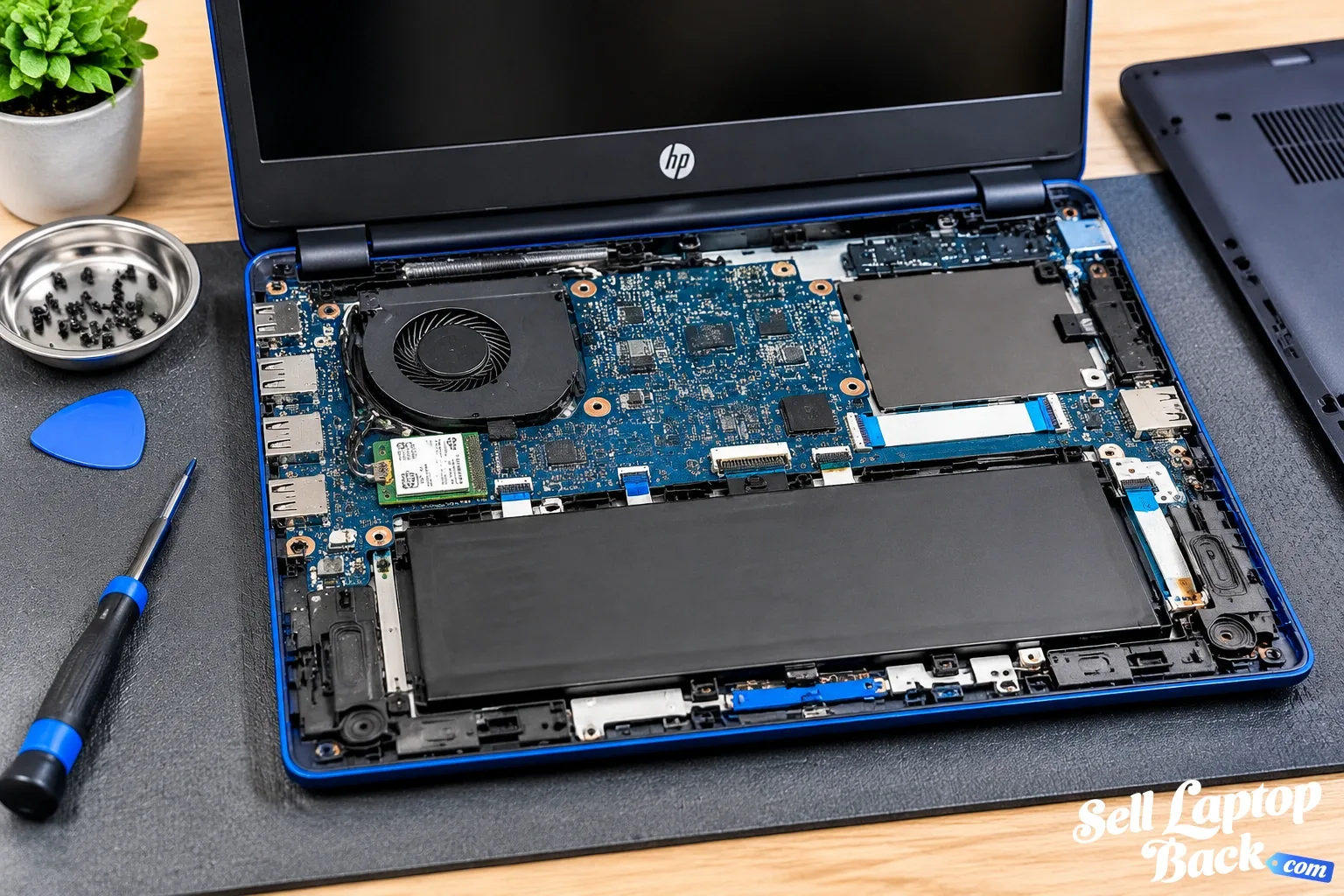
The HP Stream 14 is a compact, inexpensive laptop designed primarily for web browsing, schoolwork, email and everyday computing. Its simple exterior can make it look easy to repair, but once you open the machine there is an important difference compared with many conventional laptops: several Stream 14 generations use integrated components that are not designed as normal user upgrades.
This guide follows an actual HP Stream 14 disassembly performed by the SellBroke repair team. The original video has more than 227,000 views and demonstrates how to open the computer, access its internal components and separate the display assembly.
Important: HP Stream 14 covers multiple generations and model numbers. Internal layout, memory, storage, battery and replacement parts can vary. Find your exact model or product number before ordering parts.
Watch the HP Stream 14 Complete Disassembly
The complete teardown video is embedded below. YouTube identifies three major chapters in the original footage.
Video Chapters
The chapter markers above come directly from the video's current YouTube navigation. Because the original video groups most internal work into one large disassembly chapter, the sections below explain the individual repair areas rather than inventing additional timestamps.
Before Opening an HP Stream 14
Shut the laptop down completely and disconnect the charger and all external devices before beginning.
Work on a clean, well-lit surface and keep track of screws as they are removed. Useful tools generally include:
- Small Phillips screwdriver
- Plastic opening pick
- Plastic spudger
- Small screw organizer or magnetic repair mat
- ESD protection when handling sensitive electronics
A plastic opening tool is preferable to forcing a metal screwdriver between plastic chassis pieces. The Stream is an inexpensive laptop, and damaging the case during an otherwise simple repair can quickly make the repair uneconomical.
Opening the HP Stream 14
The main teardown begins by opening the laptop chassis and working toward the internal components.
Remove the required screws and carefully release the chassis clips. Do not force the case if it remains firmly attached. A hidden screw or engaged clip can crack the plastic if excessive pressure is applied.
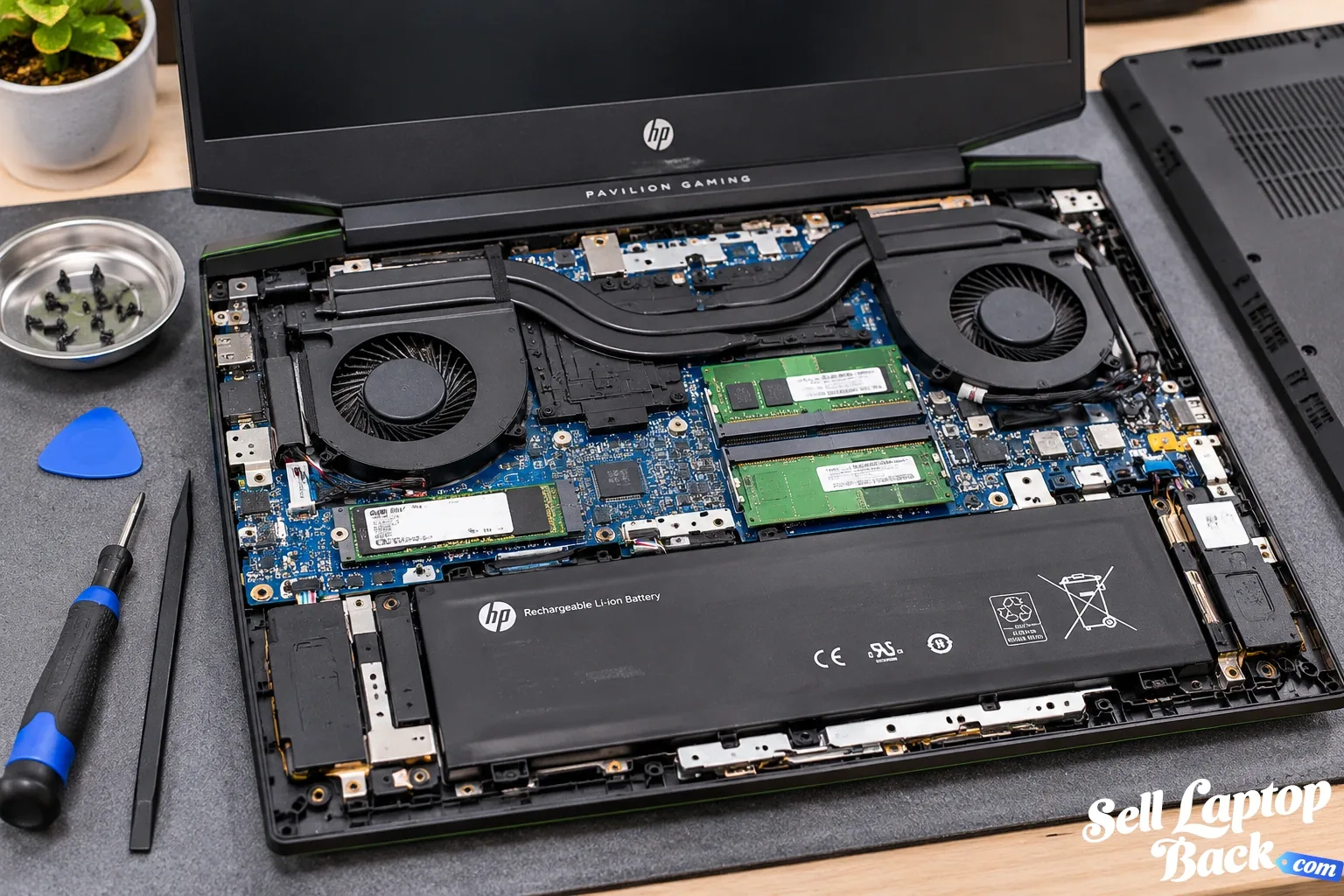
Once the machine is open, take a moment to compare its internal layout with the video. If your Stream 14 looks substantially different, you may have another generation and should locate the service information for your exact model.
Disconnect the Battery Before Internal Repairs
The battery is one of the major serviceable components inside the Stream 14.
Before disconnecting motherboard cables, wireless hardware or other components, disconnect the internal battery where the design permits. This reduces the possibility of accidentally powering a circuit while working inside the laptop.
A Stream battery may need replacement when you notice:
- Very short battery runtime
- Laptop shuts down when the charger is removed
- Battery does not charge normally
- Operating system reports significant degradation
- Battery swelling or chassis deformation
A swollen lithium-ion battery should be treated as a safety issue. Do not puncture, bend or compress it.
Can You Upgrade the RAM in an HP Stream 14?
This is where the HP Stream differs significantly from many traditional laptops.
Do not assume that opening the computer means the RAM can be upgraded.
HP's service documentation for multiple Stream 14 generations lists onboard memory or memory configurations that are not user-accessible or user-upgradeable. The exact design varies by generation, so check the service information for your specific model before buying RAM.
In other words, a generic memory module advertised as compatible with “HP laptops” does not mean it can be installed in your Stream 14.
Why This Matters
On a conventional laptop with accessible SODIMM slots, adding memory can be a straightforward upgrade. On many Stream systems, the memory configuration is effectively part of the platform.
If your Stream has limited memory and it is not upgradeable, replacing the laptop may make more financial sense than attempting a board-level modification.
Can You Upgrade the Storage in an HP Stream 14?
Again, check the exact model before purchasing anything.
Many HP Stream 14 configurations use eMMC storage rather than a conventional removable 2.5-inch hard drive or user-replaceable M.2 SSD.
eMMC storage is integrated differently from the replaceable SSD found in many mainstream laptops. You generally cannot treat it as though it were an ordinary removable drive.
This is especially relevant on older 32 GB and 64 GB Stream configurations, where limited storage can become one of the biggest practical problems with continued use.
Options When Internal Storage Is Limited
Depending on your needs, alternatives may include:
- Removing unnecessary files and applications
- Using cloud storage
- Using supported removable storage
- Using an external USB drive
- Moving large personal files off the internal storage
These options do not increase the integrated internal storage, but they may extend the useful life of the computer without attempting an impractical hardware modification.
Motherboard Access and Replacement
The teardown exposes the motherboard and its connected components.
Motherboard removal is a substantially more advanced repair than opening the case or replacing a battery.
Before removing the board, identify and carefully disconnect:
- Battery connection
- Display cable
- Keyboard and touchpad ribbon cables
- Speaker connections
- Wireless antennas
- Other model-specific cables
Many laptop ribbon connectors use small locking mechanisms. Pulling a ribbon cable without releasing its lock can damage the cable or connector.
Is an HP Stream 14 Motherboard Worth Replacing?
This deserves consideration before purchasing parts.
The Stream was designed as an inexpensive computer. On an older model, the cost of a replacement motherboard plus labor can approach or exceed the practical value of the complete laptop.
Before repairing a no-power or motherboard problem, compare:
- Replacement board cost
- Labor required
- Age of the laptop
- Battery condition
- Display condition
- Memory and storage limitations
- Cost of replacing the complete computer
A repair can still make sense if you already have a compatible donor machine or are performing the work yourself, but not every technically possible repair is economically worthwhile.
HP Stream 14 Wi-Fi Card Replacement
Wireless connectivity is another area accessible during deeper disassembly on applicable Stream models.
If you are replacing a wireless module, verify the exact module and antenna arrangement before ordering a replacement.
When disconnecting antenna leads, note their original positions. These connectors are small and should be lifted and reseated carefully rather than pulled by the cable.
A Wi-Fi problem is not automatically a failed wireless card. Driver problems, antenna damage, operating-system issues or router problems can produce similar symptoms.
Keyboard and Palm-Rest Repair
Keyboard replacement can require considerably more disassembly than users expect on thin inexpensive laptops.
Depending on the exact Stream 14 design, the keyboard may be integrated into a larger top-cover or palm-rest assembly rather than functioning as a simple module that lifts out from above.
Before purchasing a keyboard, verify whether you need:
- Keyboard only
- Keyboard with top cover
- Palm-rest assembly
- Touchpad assembly
- Complete donor chassis
This distinction can significantly affect both repair cost and difficulty.
Broken Case and Hinge Repair
Plastic chassis damage is common on older inexpensive laptops, particularly around hinge mounting points.
If a hinge becomes stiff or separates from its mounting points, continuing to open and close the display can cause additional damage to the case, bezel or display cable.
Inspect both the hinge itself and the structure to which it attaches.
A working hinge attached to broken plastic mounts requires a different repair from a physically failed hinge.
Removing the HP Stream 14 Display Assembly
Watch from 9:17 – Display Assembly
The final major chapter demonstrates separation of the display assembly from the laptop.
Display removal may be required for:
- Cracked LCD replacement
- Failed display panel
- Broken hinges
- Damaged display cable
- Broken lid or back cover
- Webcam or antenna-related repairs
Before ordering a replacement display, identify the exact model and panel configuration. HP Stream 14 generations were sold with different display options, and “14-inch HP screen” is not specific enough to guarantee compatibility.
Is the Screen or Display Cable Actually Bad?
A failed image does not always mean the LCD panel itself is defective.
Possible symptoms and causes include:
- Cracked image: usually physical LCD damage
- Image changes when moving the lid: possible cable or connector problem
- External monitor works but internal screen does not: panel, cable or backlight-related problem may be possible
- No image anywhere: diagnosis may extend beyond the display assembly
Diagnose before buying parts whenever possible.
Reassembling the HP Stream 14
Reassembly generally reverses the teardown process.
Before closing the chassis:
- Confirm all ribbon cables are seated and locked
- Verify wireless antenna connections
- Check speaker connections
- Confirm the display cable is secure
- Reconnect the battery at the appropriate stage
- Make sure no loose screws remain inside
- Check that cables are not trapped beneath components
Do not overtighten screws into plastic mounting points. Excessive torque can strip or crack the mounting structure.
Test Everything After the Repair
After reassembly, test the laptop before considering the repair complete.
Check:
- Power and charging
- Battery operation
- Display
- Keyboard
- Touchpad
- Wi-Fi and Bluetooth
- USB ports
- Audio
- Webcam
- Display movement and hinges
If you performed extensive disassembly, testing each major function can catch a cable that was accidentally left disconnected.
Which HP Stream 14 Model Do I Have?
The exact model matters because HP produced multiple Stream 14 generations.
Look for the model or product information on the laptop and use HP Support to locate documentation for the exact machine.
For example, HP has separate service documentation for families such as the Stream 14-ax0XX and later Stream 14 generations. Their memory, processor and other specifications are not necessarily identical.
Never order repair parts solely from the generic name “HP Stream 14.”
Should You Repair an Older HP Stream 14?
For a simple battery, Wi-Fi or chassis repair, possibly.
For a major motherboard or display repair, the economics become more important.
Consider:
- What is actually broken?
- What will the replacement part cost?
- Can you perform the repair yourself?
- Are the existing memory and storage still adequate?
- How old is the laptop?
- What would a replacement computer cost?
The original purchase price should not determine today's repair decision. Compare the cost of getting the machine working again with what the computer is useful for now.
What Is an Older HP Stream 14 Worth?
Older budget laptops generally depreciate heavily, particularly when their memory and integrated storage can no longer meet modern requirements.
Some older HP Stream 14 models in our catalog have now passed our normal cash-buyback cutoff. That means we would rather tell you the truth than advertise a cash offer that does not exist.
You can check the HP Stream 14 page to see the current status for the model family.
If a particular Stream is past the buy cutoff, responsible electronics recycling can make more sense than spending money shipping or repairing a machine with little remaining resale value.
Repair, Reuse or Recycle?
A computer does not need high resale value to remain useful.
If your Stream still handles the tasks you need, a sensible repair may extend its life. A working older laptop can sometimes remain useful for basic web access, lightweight tasks or other limited applications.
If the machine is no longer practical and has little resale value, recycling is preferable to throwing it in household trash.
Our HP Stream 14 page provides the current buyback or recycling status and points older systems toward recycling options when they have passed our purchase cutoff.
Frequently Asked Questions About HP Stream 14 Repair
Can you upgrade the RAM in an HP Stream 14?
Can you replace the SSD in an HP Stream 14?
Can you replace the battery in an HP Stream 14?
Can you replace the screen on an HP Stream 14?
Why does my HP Stream 14 have so little storage?
Is an HP Stream 14 worth repairing?
Can I sell an old HP Stream 14?
HP Stream 14 Teardown: Final Notes
The HP Stream 14 can be disassembled for battery, motherboard, wireless, keyboard, chassis and display-related repairs, but it should not be confused with a conventional upgrade-friendly laptop.
On many Stream generations, limited memory and eMMC storage are fundamental parts of the machine's design. Verify the exact model before purchasing parts or assuming that RAM or internal storage can be upgraded.
Use the teardown video as the visual reference, consult the documentation for your specific HP model and decide whether the repair makes financial sense before buying expensive components.
If you're finished with the machine, check the current HP Stream 14 status for available buyback or recycling options.