
On this page
- Dell Inspiron 15 3567 Teardown at a Glance
- Watch the Complete Dell Inspiron 15 3567 Teardown
- Dell Inspiron 15 3567 Video Chapters
- Before You Open the Dell Inspiron 15 3567
- Removing the Battery
- Removing the Optical Drive
- Removing the Keyboard
- Opening the Case
- Inside the Dell Inspiron 15 3567
- Upgrading or Replacing the RAM
- Hard Drive and Storage Replacement
- Wi-Fi Card Replacement
- Cooling Fan and Heatsink
- Motherboard Removal
- Separating the Display Assembly
- Replacing a Cracked Screen
- Broken Hinges and Case Damage
- Common Dell Inspiron 15 3567 Problems Worth Diagnosing
- Is the Dell Inspiron 15 3567 Still Worth Upgrading?
- A Windows Support Consideration for This Generation
- Repair or Sell the Dell Inspiron 15 3567?
- Should You Fix the Laptop Before Selling It?
- Can a Broken Inspiron 15 3567 Still Be Worth Money?
- Protect Your Data Before Selling or Recycling the Laptop
- How to Sell a Dell Laptop to SellLaptopBack
- Dell Inspiron 15 3567 Repair FAQ
- Repair It When It Makes Sense — Sell It When It Doesn't
Published: October 17, 2026 | Updated: October 17, 2026 | By: SellLaptopBack.com | Read time: 15 min read
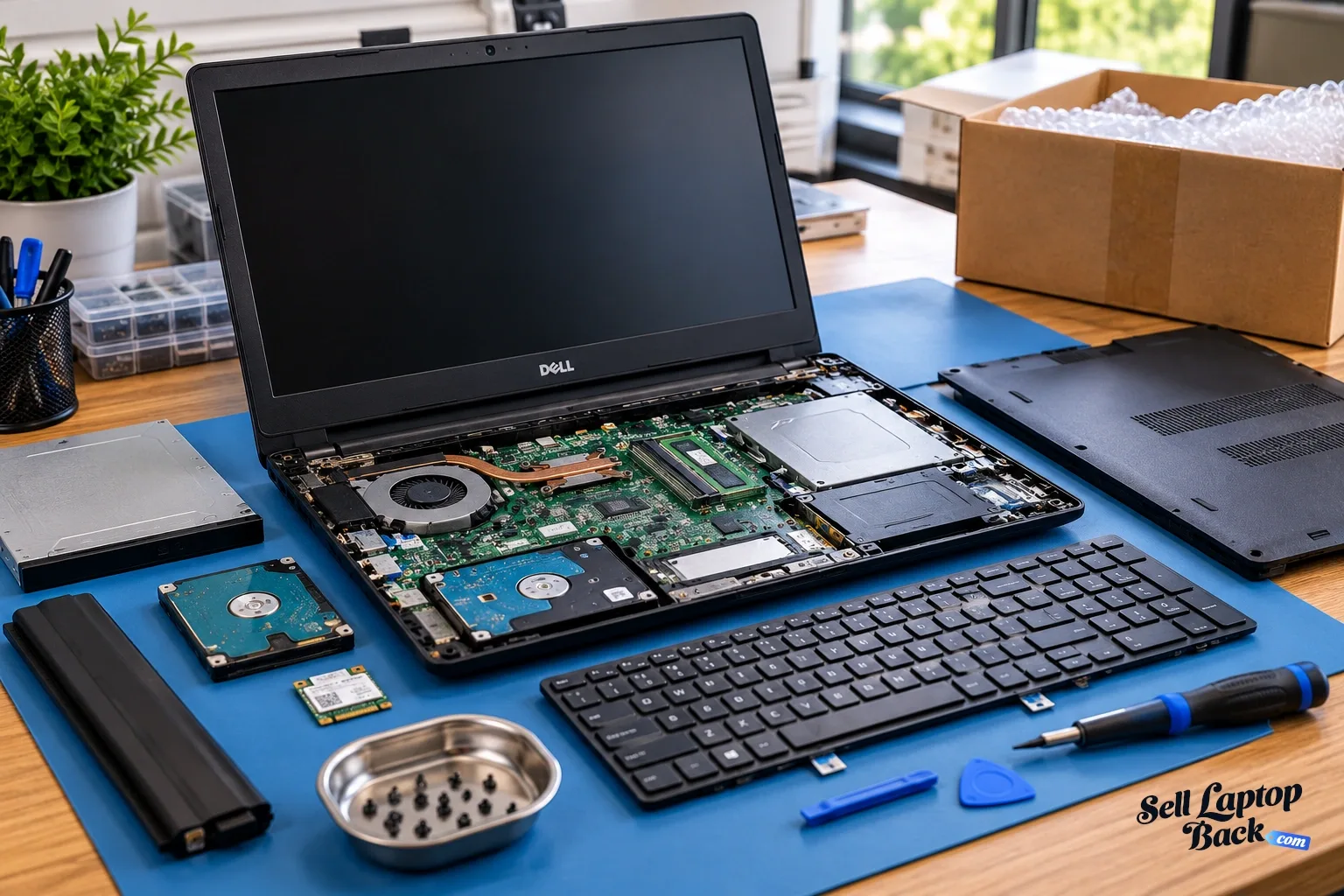
The Dell Inspiron 15 3567 is part of Dell's Inspiron 15 3000 family, and unlike many newer thin laptops, it comes from an era when a notebook could still be taken apart and serviced component by component. If you need to replace a hard drive, upgrade memory, change the keyboard, diagnose cooling problems or reach the motherboard, understanding the correct disassembly sequence makes the job considerably easier.
This guide is built around our original hands-on Dell Inspiron 15-3567 teardown video. The video was published by SellBroke in 2019 and has since accumulated more than 300,000 views, 1,500 likes and dozens of comments from people using it to work on their own laptops.
The particular machine demonstrated in the video uses an Intel Core i3-7100U processor. Dell sold the Inspiron 15-3567 in multiple configurations, however, so do not assume that every 3567 contains identical hardware.
If you are opening the laptop for a repair or upgrade, use the video as the visual reference and this article as the accompanying guide. If you discover that the repair costs more than the computer is worth, you can also check current Dell laptop values or see the options available for selling a broken laptop.
Dell Inspiron 15 3567 Teardown at a Glance
- Model: Dell Inspiron 15 3567
- Family: Inspiron 15 3000
- Video configuration: Intel Core i3-7100U
- Memory design: two DDR4 SODIMM slots
- Major teardown areas: battery, optical drive, keyboard, storage, memory, Wi-Fi, cooling system, motherboard and display assembly
- Useful for: repairs, upgrades, cleaning, diagnostics and evaluating whether an older laptop is worth fixing
Dell still maintains an official support page for the Inspiron 15 3567 with manuals, drivers, diagnostics and troubleshooting information.
Watch the Complete Dell Inspiron 15 3567 Teardown
The video below shows the actual disassembly process from the outside of the computer down to the motherboard, cooling system and display assembly.
If this is your first time opening the laptop, watch the relevant portion before removing parts. Knowing where a cable, clip or screw is located before applying force can prevent turning a simple repair into a damaged connector or broken case.
Dell Inspiron 15 3567 Video Chapters
- 0:00 - Opening the Dell Inspiron 15 3567 Case
- 1:28 - Removing the Keyboard
- 3:02 - Removing the Palm Rest
- 4:11 - Removing Internal Components
- 5:52 - Removing the Fan and Heatsink
- 7:30 - Detaching the Display Assembly
- 8:43 - Removing the Motherboard
- 11:03 - Disassembling the Display
The original teardown demonstrates access needed for repairs involving the hard drive, memory, motherboard, display, keyboard, case, battery and Wi-Fi hardware.
Before You Open the Dell Inspiron 15 3567
Shut the laptop down completely before beginning. Disconnect the AC adapter and remove USB devices, memory cards and other peripherals.
One advantage of this Inspiron generation is that the main battery is externally removable. Remove it before continuing with internal disassembly.
Work on a clean, well-lit surface and keep screws organized according to the component they secure. Laptop screws can look almost identical while having different lengths. Installing a long screw into the wrong location can damage the case or hardware underneath it.
Useful tools include:
- small Phillips screwdriver
- plastic opening tool or spudger
- small container or magnetic tray for screws
- ESD protection when available
- clean workspace with good lighting
Before replacing storage or performing a major repair, back up important data whenever the computer is still operational.
Removing the Battery
The removable battery is one of the first components to address before working inside the Inspiron 15 3567.
Disconnecting battery power reduces the possibility of accidentally energizing the motherboard while cables or components are being disconnected.
An aging battery is also one of the more common reasons an older laptop becomes inconvenient to use. If the machine operates correctly from its charger but shuts down quickly when unplugged, battery condition should be part of the diagnosis.
Before purchasing a replacement, verify the correct battery for the exact laptop configuration rather than ordering solely from a photograph.
Removing the Optical Drive
The Inspiron 15 3567 comes from a generation in which an internal optical drive was still common. The optical drive needs to be considered during disassembly because it forms part of the assembled chassis.
After its retaining hardware is released, the drive can be removed from the side of the laptop.
This is also a useful reminder of how much notebook design has changed. Modern thin laptops frequently eliminate optical drives entirely, while this Inspiron was designed around individually removable components.
Removing the Keyboard
The keyboard is removed during the teardown to gain access to fasteners and connections required for deeper disassembly.
This stage deserves care because keyboards connect to the motherboard through a flat ribbon cable. Do not pull the keyboard away from the computer until the cable connection has been released correctly.
If the reason for the repair is a failed keyboard, check whether the problem affects individual keys, the entire keyboard or another part of the system before ordering a replacement.
Keyboard symptoms can include:
- individual keys not responding
- multiple keys failing together
- keys repeating unexpectedly
- liquid-related damage
- physically missing or broken keys
- complete keyboard failure
Opening the Case
Once the preliminary components and required screws are removed, the case can be separated to expose the internal hardware.
Plastic clips around an older laptop can become brittle with age. Work progressively around the perimeter rather than forcing one section apart.
If the case refuses to separate, stop and check for a missed screw. Applying more force is usually a poor substitute for finding the fastener that is still holding the chassis together.
Inside the Dell Inspiron 15 3567
With the system opened, the laptop's serviceable components become much easier to understand.
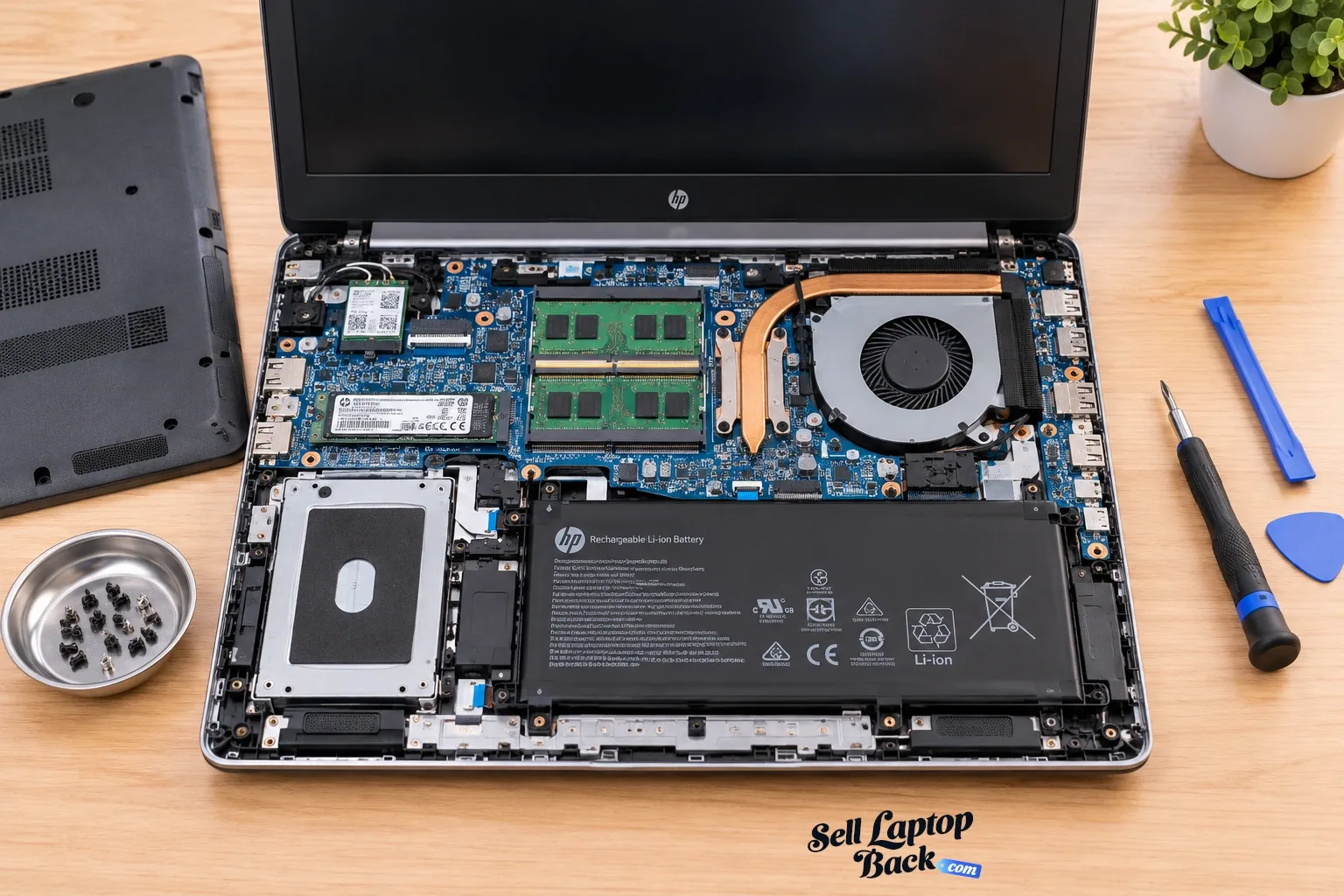
The teardown exposes hardware involved in storage, memory, wireless networking, cooling and motherboard-level repairs. This is where the Inspiron 15 3567 differs considerably from many modern ultraportable computers in which more components may be soldered or tightly integrated.
Upgrading or Replacing the RAM
Dell's specifications for the Inspiron 15 3567 document two DDR4 SODIMM memory slots. That makes memory one of the components that can be serviced or upgraded without replacing the motherboard.
Before buying RAM, check what is already installed. A computer using both slots requires a different upgrade decision from a machine with an available slot.
Also verify compatible capacity and memory specifications for the particular configuration before ordering parts.
More RAM can improve usability when insufficient memory is causing excessive disk activity or limiting multitasking, but memory will not solve unrelated problems such as a failing hard drive or overheating processor.
Hard Drive and Storage Replacement
The storage drive is another major component accessible during the teardown.
A failing hard drive can make an otherwise functional laptop feel almost unusable. Symptoms can include extremely slow startup, freezing, corrupted files, unusual drive behavior or failure to boot.
On an older laptop originally equipped with a mechanical hard drive, moving to compatible solid-state storage can dramatically improve responsiveness. The processor does not become faster, but applications and Windows no longer have to wait on a slow mechanical disk for many everyday operations.
If the existing drive still works, back up important files before replacement.
If the drive has already failed and contains valuable data, repeated attempts to operate a mechanically failing drive can make professional data recovery more difficult. Treat irreplaceable data differently from an ordinary operating-system replacement.
Wi-Fi Card Replacement
The wireless card and its antenna connections are visible during deeper disassembly.
If you are troubleshooting Wi-Fi, do not automatically assume the wireless card itself has failed. Driver problems, antenna connections and software configuration can create similar symptoms.
If the card must be removed, pay close attention to the antenna leads. These small connectors are designed to snap vertically onto the card and can be damaged if twisted or forced.
Take a photograph before disconnecting the antennas if you are unsure which cable belongs on each terminal.
Cooling Fan and Heatsink
The cooling system moves heat away from the processor and exhausts it from the chassis. Dust accumulation, restricted airflow or a failing fan can cause an older laptop to run hotter and louder than it should.
Symptoms worth investigating include:
- fan running constantly
- fan making grinding or rattling noises
- excessive heat
- performance slowing under sustained load
- unexpected thermal shutdowns
- little or no airflow from the exhaust
The teardown shows how far the computer must be disassembled to work around the heatsink and motherboard area.
If the heatsink is removed from the processor, proper reassembly and thermal-interface preparation are important. Simply placing a previously disturbed heatsink back onto old damaged thermal compound is not good repair practice.
Motherboard Removal
Motherboard replacement is one of the deeper repairs demonstrated by a complete teardown.
Before the board can be removed, connected components and cables must be disconnected and the hardware securing the motherboard must be removed.
This is also the point where repair economics become particularly important.
A motherboard replacement can cost considerably more than replacing RAM, storage or a battery. On an older Inspiron, compare the complete repair expense with the current value of the laptop before buying a replacement board.
If the machine has a serious motherboard problem and the repair no longer makes financial sense, it may still have value as a broken computer. You can check options for selling a non-working laptop rather than automatically discarding it.
Separating the Display Assembly
The teardown also demonstrates separating the display assembly from the laptop base.
This is useful when repairing:
- broken hinges
- damaged display cables
- cracked LCD panels
- damaged display housings
- complete lid assemblies
Before assuming a black screen means the LCD itself has failed, diagnose the problem carefully. Display problems can originate from the panel, cable, motherboard, power circuitry or other components.
Replacing parts without first determining the failure can quickly make an inexpensive laptop repair unnecessarily expensive.
Replacing a Cracked Screen
A cracked LCD is one of the easiest laptop problems to recognize because the damage is usually visible.
Whether screen replacement makes financial sense is another question.
Consider the price of the correct panel, shipping, tools and labor if you are paying someone else to perform the repair. Then compare that total with what a working Inspiron 15 3567 is worth.
If you already have the tools and can perform the repair yourself, the economics may be different from paying a repair shop for the same job.
Broken Hinges and Case Damage
Hinge problems deserve attention before they become worse.
Sometimes the hinge itself is damaged. In other cases, the hinge remains mechanically functional but has pulled away from plastic mounting points in the base or display housing.
Continuing to open and close a laptop with severe hinge damage can put additional stress on the display cable, Wi-Fi antenna wires and surrounding plastics.
A laptop with hinge or case damage may still have resale value, but the condition should be described accurately.
Common Dell Inspiron 15 3567 Problems Worth Diagnosing
As an older notebook, an Inspiron 15 3567 may eventually experience more than one age-related problem.
Common repair categories include:
- weak or failed battery
- slow or failed hard drive
- insufficient memory
- broken keyboard
- damaged charging connector
- overheating
- noisy or failed cooling fan
- Wi-Fi problems
- broken hinges
- cracked screen
- damaged case plastics
- motherboard failure
Do not replace every suspicious component at once. Diagnose the failure, estimate the repair cost and then decide whether the result justifies the expense.
Is the Dell Inspiron 15 3567 Still Worth Upgrading?
That depends on what you expect from it.
Dell's documentation shows that the Inspiron 15 3567 platform was available with 6th- and 7th-generation Intel Core processors. The laptop in our teardown uses the 7th-generation Core i3-7100U.
For basic use, an otherwise healthy machine may still benefit from sensible low-cost repairs or upgrades. Storage and memory improvements can make an older computer more pleasant to use when those components are the bottleneck.
But upgrades cannot transform the underlying processor platform into a modern laptop.
Before spending heavily on an older computer, ask what the complete repair or upgrade will cost and whether that money would be better applied toward a newer system.
A Windows Support Consideration for This Generation
Operating-system support should also be considered when deciding how much money to put into an older computer.
Dell's support information for the Inspiron 15 3567 lists Windows 10 among the operating systems supported for this model. Windows 10 reached the end of its standard Microsoft support lifecycle in October 2025.
That does not physically stop the laptop from working, but software support and security requirements are relevant when deciding whether an older machine should receive an expensive repair.
Repair or Sell the Dell Inspiron 15 3567?
The right answer depends on the failure and what the laptop is worth in each condition.
A simple way to evaluate the decision is:
- Identify the actual problem.
- Determine the complete cost of repair.
- Check the laptop's value as it sits.
- Estimate its value after repair.
- Compare the difference with the repair expense.
A low-cost storage replacement may make sense on an otherwise good computer. A laptop requiring a motherboard, display, battery and damaged chassis repair presents a completely different calculation.
Our laptop depreciation guide explains why the market value of older computers continues to decline even when they remain usable.
Should You Fix the Laptop Before Selling It?
Not necessarily.
This is one of the most common mistakes owners make with older electronics. They assume a laptop must be completely repaired before anyone will buy it.
Suppose a repair costs $120 but only adds $60 to the computer's resale value. Repairing it specifically to sell it would lose money.
On the other hand, a very inexpensive repair that changes a laptop from non-working to fully functional may be worthwhile.
Check both values before ordering parts.
Can a Broken Inspiron 15 3567 Still Be Worth Money?
Potentially, yes.
A broken computer is not necessarily a computer with zero useful components.
Depending on the failure, usable parts may include memory, storage, display components, wireless hardware, case components, keyboard, optical drive and other assemblies.
The complete machine may also be repairable by someone who already has compatible parts.
If you decide not to repair it, see our broken laptop buying options or browse the Dell laptop catalog.
Protect Your Data Before Selling or Recycling the Laptop
If the computer still boots, back up personal files before transferring ownership.
Remove personal accounts and reset or erase the computer when appropriate. If you are keeping the storage drive because it contains sensitive information, disclose that the laptop is being sold without its drive.
A computer without storage should not be described as equivalent to a complete working laptop.
If the machine will be shipped, follow our laptop packing and shipping guide so that its physical condition does not change during transit.
How to Sell a Dell Laptop to SellLaptopBack
If the repair does not make sense, you can check whether the laptop still qualifies for an offer.
- Identify the exact Dell model.
- Browse the Dell laptop catalog.
- Select the closest correct configuration.
- Describe the condition accurately.
- Review the quote.
- Back up your data and prepare the computer.
- Pack and ship the laptop securely.
Current shipping options: UPS/FedEx. Current payment options: Check, PayPal, Zelle, Venmo, or CashApp.
Check Your Dell Laptop ValueDell Inspiron 15 3567 Repair FAQ
Can I upgrade the RAM in a Dell Inspiron 15 3567?
Can I replace the hard drive in an Inspiron 15 3567?
Can the Dell Inspiron 15 3567 keyboard be replaced?
Can I replace the battery in a Dell Inspiron 15 3567?
Can the screen on a Dell Inspiron 15 3567 be replaced?
Is the Dell Inspiron 15 3567 worth repairing?
Can I sell a broken Dell Inspiron laptop?
Repair It When It Makes Sense — Sell It When It Doesn't
The Dell Inspiron 15 3567 is a useful example of a serviceable laptop design. The battery, storage, memory, Wi-Fi hardware, keyboard, cooling system, motherboard and display assembly can all be reached through systematic disassembly.
That does not mean every repair is worth performing.
The best decision is based on the problem in front of you. Diagnose the laptop first. Price the repair. Compare that cost with the machine's current value and what it would be worth after the repair.
If fixing it makes sense, the teardown video above gives you a real hands-on reference for getting inside the machine. If the numbers no longer work, browse our Dell laptop models or check the options for selling a broken laptop.
Get My Dell Laptop Quote