
Aug 19, 2025
On this page
- 1. Dell Inspiron 3501 Pre-Disassembly: Valuation & Preparation
- 💰 Resale Valuation Factors
- 🛠️ Essential Tools
- 🔍 Model Verification
- ⚡ Preparation Steps
- 📈 Resale Preparation
- 2. Dell Inspiron 3501 Bottom Cover Removal: Safe Access Guide
- ⚠️ Safety Precautions
- 🔧 Step-by-Step Removal Process
- 🛡️ Preventing Common Damage
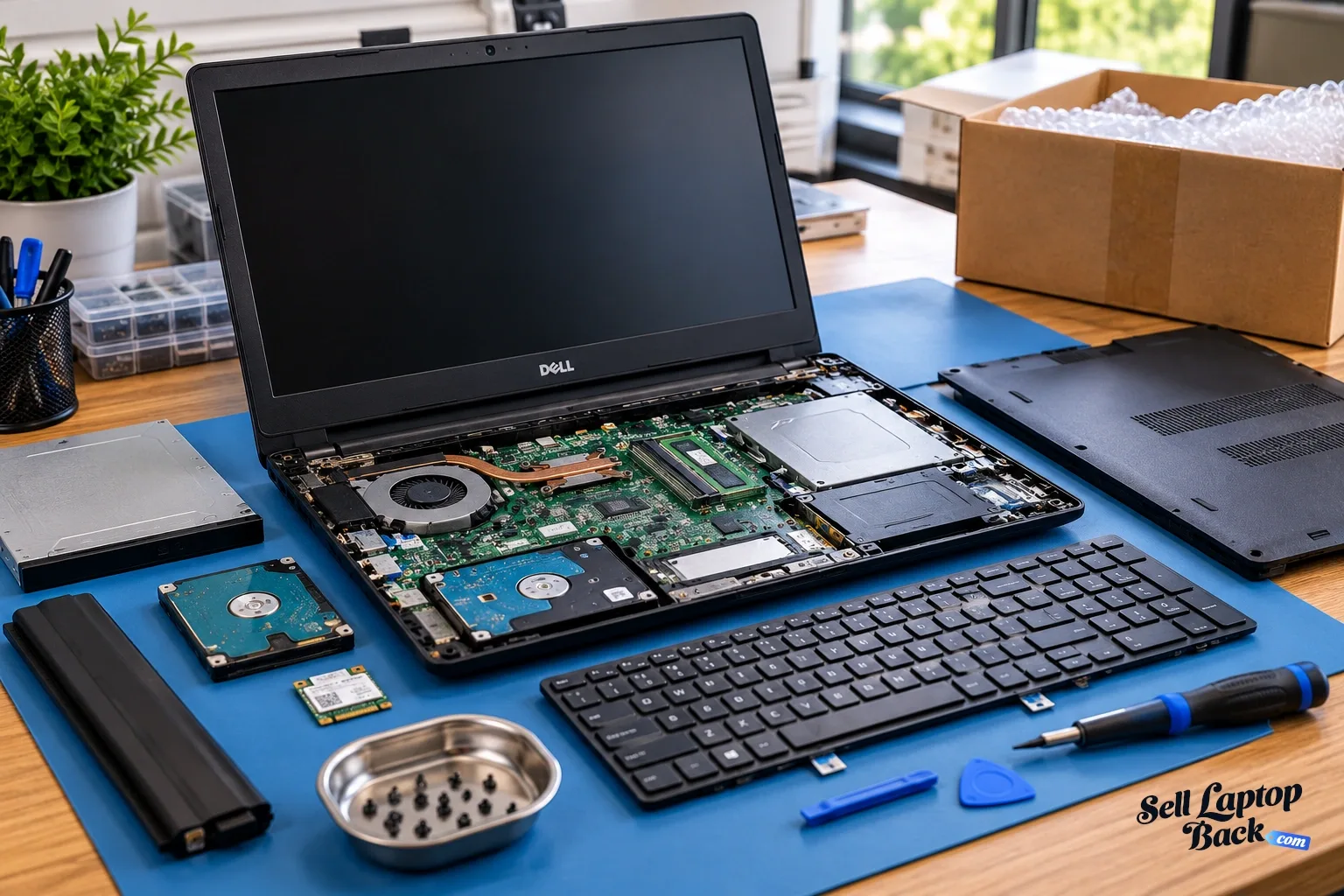
- 🔍 Internal Layout Overview
- 📸 Documentation for Resale
- 3. Dell Inspiron 3501 RAM Upgrade: Performance Optimization Guide
- 💾 Memory Specifications
- 🔄 Configuration Options
- 🔧 Installation Process
- 🏆 Recommended Modules
- ⚡ Optimization Tips
- 💰 Selling With Upgraded RAM
- 4. Dell Inspiron 3501 SSD Upgrade: SATA vs NVMe Performance Guide
- 💽 Storage Options & Compatibility
- ⚡ Speed Comparison: SATA vs NVMe
- 🔧 Installation Process
- 🏆 Recommended SSDs
- 🔄 Data Migration Options
- ⚙️ Post-Installation Optimization
- 💰 Selling With Upgraded SSD
- 5. Dell Inspiron 3501 Battery Replacement: Extended Runtime & Resale Value
- 🔋 Battery Specifications & Options
- ⚠️ Safety Precautions
- 🛠️ Replacement Steps
- ⚡ Battery Calibration Process
- 📊 Generating Battery Health Report
- 🔋 Maximizing Battery Life
- 💰 Maximizing Resale Value
- 🎯 Best Platforms for Battery-Upgraded Laptops
- 6. Dell Inspiron 3501 LCD Screen Replacement: Display Quality & Resale Value
- 🖥️ Display Specifications & Compatibility
- 🔧 Step-by-Step Replacement Guide
- ✅ Quality Assurance Testing
- 🏆 Recommended Replacement Panels
- 🛠️ Specialized Tools Needed
- 🧪 Testing & Calibration Software
- 💰 Selling After Screen Replacement
- ⚠️ Troubleshooting Common Issues
- 7. Dell Inspiron 3501 Motherboard Replacement: Ultimate Repair & Upgrade Guide
- 🔌 Motherboard Specifications & Compatibility
- 🔧 Step-by-Step Replacement Guide
- ✅ Compatibility Considerations
- ⚡ Upgrade Opportunities
- 🔄 Post-Installation Procedures
- ⚠️ Common Issues & Solutions
- 💰 Selling After Motherboard Replacement
- 🛠️ Professional Tools Recommended
- 8. Dell Inspiron 3501 Reassembly & Quality Testing: Professional Finish
- 🔄 Step-by-Step Reassembly Guide
- ✅ Comprehensive Quality Assurance Testing
- ⚡ Performance Validation Suite
- 🔥 Comprehensive Stress Testing
- ✨ Cosmetic Final Touches
- 📄 Resale Documentation Package
- 📋 Pre-Shipment Checklist
- 9. Selling Your Upgraded Dell Inspiron 3501: Maximum Profit Strategies
- 📊 Optimal Selling Platforms
- 📈 Listing Optimization Strategies
- 🎓 Targeting Educational Buyers
- 🏛️ Government & Institutional Sales
- 💰 Dynamic Pricing Strategy
- 📸 Professional Photography Guide
- 📄 Essential Documentation Package
- 📦 Professional Shipping Methods
- Need to Sell Your Dell Laptop? Get Instant Cash!
1. Dell Inspiron 3501 Pre-Disassembly: Valuation & Preparation
💰 Resale Valuation Factors
| Component | Upgrade Impact | Value Increase |
|---|---|---|
| RAM (4GB → 8GB) | Enhanced multitasking capability | +$50-$75 |
| SSD (HDD → NVMe) | Faster boot and load times | +$60-$90 |
| New Battery | Extended battery life | +$45-$65 |
| LCD Upgrade | Improved visual experience | +$70-$110 |
🛠️ Essential Tools
- Basic Toolkit:
- PH0 and PH00 Phillips screwdrivers
- Plastic spudger set
- Anti-static wrist strap
- Recommended Extras:
- Magnetic project mat
- ESD-safe tweezers
- Portable work light
🔍 Model Verification
- Locate Service Tag on bottom casing
- Verify specifications on Dell's official support page
- Confirm processor generation (Intel 10th/11th Gen)
- Check existing warranty status
⚡ Preparation Steps
- Data Backup:
- Use Dell Backup and Recovery or Macrium Reflect
- Create system image for full restoration
- Documentation:
- Photograph laptop from all angles
- Record current condition and specifications
- Generate battery health report:
powercfg /batteryreport
📈 Resale Preparation
- Student Market:
- Highlight portability (starting at 4.3 lbs)
- Emphasize battery life improvements
- Business Buyers:
- Focus on reliability and performance
- Show professional upgrade documentation
- Gaming Potential:
- Note integrated Intel UHD Graphics capabilities
- Mention light gaming compatibility
2. Dell Inspiron 3501 Bottom Cover Removal: Safe Access Guide
⚠️ Safety Precautions
- Power Down Completely:
- Shut down (not sleep or hibernate)
- Disconnect AC adapter and all peripherals
- Hold power button for 10 seconds to discharge
- Workspace Setup:
- Use ESD-safe mat
- Organize screws by type and location
- Ensure adequate lighting
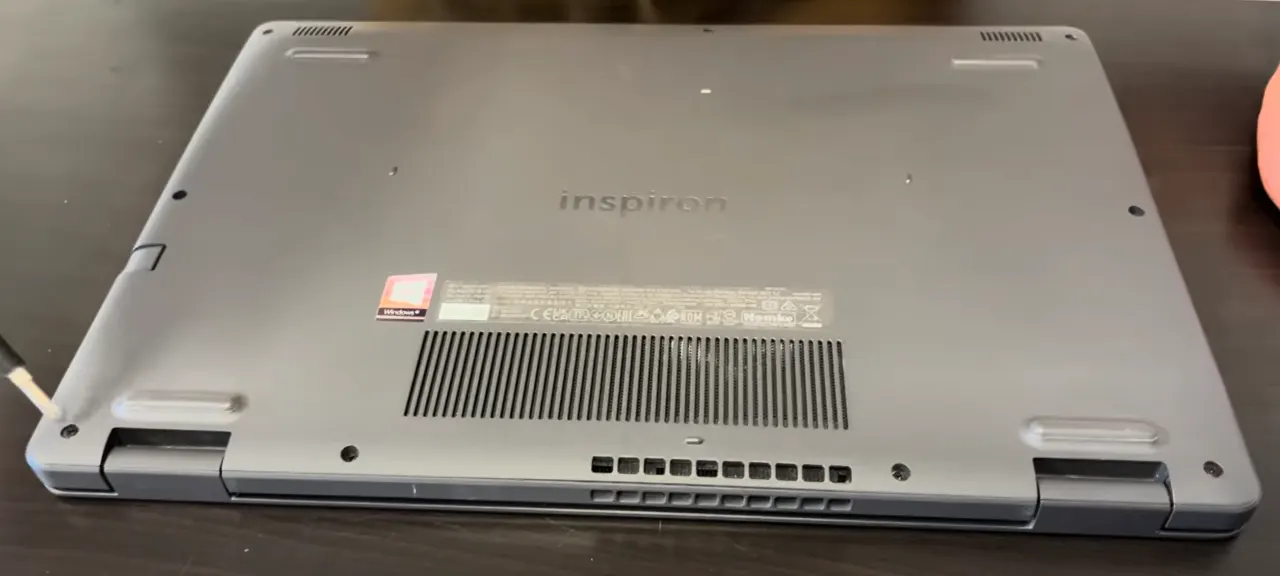
🔧 Step-by-Step Removal Process
- Remove 10 Screws:
- 8x short silver screws (M2x4mm) around perimeter
- 2x longer black screws near hinge area (M2x6mm)
- Use magnetic PH0 driver
- Release Plastic Clips:
- Start near the front edge (weakest point)
- Insert plastic spudger at 30° angle
- Work methodically around all edges
- Listen for distinct "click" sounds
- Lift Cover Carefully:
- Lift from front edge first
- Watch for stubborn clips near ventilation areas
- Check for any missed screws
🛡️ Preventing Common Damage
| Risk Area | Prevention Technique | Resale Impact |
|---|---|---|
| Plastic Clips | Alternate sides every 3-4 clips | Intact clips = +$40-60 value |
| Paint Scratches | Microfiber cloth under tools | Flawless finish = +$25-40 |
| Screw Threads | Apply downward pressure while turning | Undamaged = +$15-25 |
| Internal Components | Check clearance before lifting | No damage = +$50-100 |
🔍 Internal Layout Overview
- Upgrade Points Visible:
- Two RAM slots (supports up to 16GB)
- M.2 2280 SSD slot (SATA/NVMe compatible)
- 2.5" drive bay (for additional storage)
- Battery Access:
- 3-cell 42Wh or 4-cell 54Wh battery
- Easy-release connector with pull tab
- Cooling System:
- Single fan design
- Accessible heat sink
📸 Documentation for Resale
- Photograph screw locations before removal
- Record factory seal condition
- Document internal component layout
- Note any pre-existing damage
0:20 Bottom Case 1:48 Battery 2:22 Memory RAM 2:38 WiFi Card 3:01 SSD storage 3:58 Cooling Fan 4:30 Heatsink 4:59 Speakers 5:34 Additional Storage Caddy 6:22 IO Board 7:10 Motherboard 8:46 Hinges 9:09 Palmrest Assembly 9:16 Trackpad 9:21 Keyboard 9:27 DC Power Jack 9:50 Display Assembly
3. Dell Inspiron 3501 RAM Upgrade: Performance Optimization Guide
💾 Memory Specifications
- Supported Types:
- DDR4 SODIMM (260-pin)
- 2666MHz or 3200MHz (depending on CPU generation)
- Dual-channel architecture
- Maximum 16GB (2x8GB) configuration
- Compatibility Verification:
- Check Dell's official specifications
- Non-ECC, unbuffered modules only
- 1.2V operating voltage
🔧 Installation Process
- Access RAM Slots (after bottom cover removal)
- Release Existing Modules:
- Push outward on side clips simultaneously
- Module will pop up at 30° angle
- Install New RAM:
- Align notch with slot key
- Insert at 30° angle
- Press down firmly until clips engage
- Verification:
- Boot to BIOS (F2 during startup)
- Check recognized capacity and speed
- Run Windows Memory Diagnostic
🏆 Recommended Modules
- Budget Option:
- Crucial CT8G4SFRA266 (8GB DDR4-2666)
- Reliable performance at affordable price
- Performance Option:
- Corsair Vengeance CMSX16GX4M2A2666C18 (16GB Kit)
- Low latency for better responsiveness
- Premium Option:
- HyperX Impact HX426S16IB2K2/16 (16GB Kit)
- Optimized for intensive applications
⚡ Optimization Tips
- Run MemTest86 for 4 passes to ensure stability
- Enable XMP profile in BIOS if supported
- Update BIOS to latest version for best compatibility
- Match speeds when mixing modules (runs at slowest speed)
💰 Selling With Upgraded RAM
- Documentation:
- Save original purchase receipts
- Include Task Manager screenshots showing capacity
- Provide MemTest86 results for stability proof
- Marketing Advantages:
- "Enhanced multitasking capability"
- "Ideal for students and professionals"
- "Smooth performance for daily computing"
- Target Markets:
- Students: Emphasize multitasking for research
- Business users: Highlight productivity benefits
- Home users: Note smooth web browsing experience
4. Dell Inspiron 3501 SSD Upgrade: SATA vs NVMe Performance Guide
⚡ Speed Comparison: SATA vs NVMe
| SSD Type | Read Speed | Write Speed | Real-World Benefit | Resale Value Impact |
|---|---|---|---|---|
| 2.5" SATA III | 550 MB/s | 500 MB/s | 3x faster than HDD | +$40-60 |
| M.2 SATA III | 550 MB/s | 520 MB/s | Same speed, smaller form factor | +$45-65 |
| NVMe PCIe Gen3 | 3,500 MB/s | 3,000 MB/s | 6x faster than SATA | +$80-120 |
🔧 Installation Process
- M.2 NVMe/SATA Installation:
- Locate M.2 slot near RAM modules
- Insert SSD at 30° angle
- Secure with M2x3mm screw (included with most SSDs)
- Apply thermal pad if using high-performance NVMe drive
- 2.5" SATA Installation:
- Mount in drive caddy with rubber vibration dampeners
- Connect SATA data and power cables
- Secure with 4x M3x4mm screws
- Dual Drive Configuration:
- Use NVMe for OS and applications
- Use 2.5" SATA for data storage
- Configure in BIOS/UEFI settings
🏆 Recommended SSDs
- Budget NVMe Option:
- Crucial P5 1TB
- Excellent price-to-performance ratio
- Performance NVMe Option:
- Samsung 970 EVO Plus 1TB
- Proven reliability and speed
- SATA Option:
- Western Digital Blue 3D NAND 1TB
- Great for secondary storage
🔄 Data Migration Options
- Clean Installation:
- Download Windows from Microsoft
- Install Dell drivers from support site
- Best for performance, removes bloatware
- Drive Cloning:
- Use Macrium Reflect Free
- Clonezilla for advanced users
- Preserves existing setup and applications
⚙️ Post-Installation Optimization
- Enable TRIM:
fsutil behavior set DisableDeleteNotify 0 - Update SSD firmware through manufacturer tools
- Disable defragmentation for SSDs
- Enable write caching in Device Manager
- Run CrystalDiskMark for performance validation
💰 Selling With Upgraded SSD
- Documentation:
- CrystalDiskMark benchmark screenshots
- Drive health report (CrystalDiskInfo)
- Original purchase receipt for SSD
- Marketing Advantages:
- "Instant boot and load times"
- "Massive storage for work/study"
- "Whisper-quiet operation"
- Performance Claims:
- "Boots in under 10 seconds"
- "Applications launch instantly"
- "Perfect for productivity and multimedia"
5. Dell Inspiron 3501 Battery Replacement: Extended Runtime & Resale Value
🔋 Battery Specifications & Options
| Battery Model | Capacity | Compatibility | Estimated Runtime | Resale Value Impact |
|---|---|---|---|---|
| Dell 53YVH (Original) | 42Wh (3-cell) | All 3501 models | 4-6 hours | +$40-60 |
| Dell 9N4FV (Upgrade) | 54Wh (4-cell) | Check chassis compatibility | 6-8 hours | +$60-85 |
| Premium Aftermarket | 48-52Wh | Verify fitment | 5-7 hours | +$30-50 |
Always verify compatibility using your Dell Service Tag before purchase.
⚠️ Safety Precautions
- Complete Power Down:
- Shut down completely (not sleep/hibernate)
- Disconnect AC adapter and all peripherals
- Discharge Residual Power:
- Hold power button for 15 seconds after shutdown
- Wait 5 minutes before starting work
- Use anti-static wrist strap
🛠️ Replacement Steps
- Access Battery Compartment (after bottom cover removal):
- Locate battery near front edge
- Identify connector and mounting screws
- Disconnect Battery:
- Gently lift black locking tab on connector
- Pull connector straight out (not at angle)
- Remove Old Battery:
- Unscrew 4x M2x4mm retention screws
- Lift battery at 30° angle from front edge
- Note orientation for replacement
- Install New Battery:
- Align with screw holes and connector
- Secure with original screws (0.6Nm torque)
- Reconnect power connector until click
⚡ Battery Calibration Process
- Charge to 100% without interruption (overnight recommended)
- Discharge completely (use until automatic shutdown)
- Recharge to 100% again without interruption
- Repeat this cycle 2-3 times for optimal calibration
📊 Generating Battery Health Report
- Open Command Prompt as Administrator
- Run:
powercfg /batteryreport - Report saves as battery-report.html in current directory
- Check key metrics:
- DESIGN CAPACITY vs FULL CHARGE CAPACITY
- Battery cycle count
- Recent usage history
🔋 Maximizing Battery Life
- Enable Dell Power Manager (from SupportAssist)
- Set to "Primarily AC Use" for mostly plugged-in usage
- Use "Adaptive" setting for balanced performance
- Enable battery saver in Windows at 20% threshold
- Reduce screen brightness (biggest power savings)
💰 Maximizing Resale Value
- Documentation:
- Photograph OEM battery label and part number
- Include battery health report PDF
- Save purchase receipt for genuine Dell battery
- Marketing Points:
- "Genuine Dell replacement battery"
- "95%+ health capacity"
- "6-8 hours typical usage"
- "Perfect for students and mobile professionals"
- Buyer Assurance:
- Offer 30-day battery performance guarantee
- Provide calibration documentation
- Include power management tips
🎯 Best Platforms for Battery-Upgraded Laptops
- Facebook Marketplace: Highlight "all-day battery" for students
- eBay: Use "Dell genuine battery" in title
- Swappa: Include battery health report in listing
- Local college boards: Target students between classes
6. Dell Inspiron 3501 LCD Screen Replacement: Display Quality & Resale Value
🖥️ Display Specifications & Compatibility
- Original Panel Types:
- 15.6" HD (1366x768) TN - 220 nits
- 15.6" FHD (1920x1080) IPS - 250 nits
- 15.6" FHD (1920x1080) Touch - 300 nits
- Compatibility Factors:
- 30-pin or 40-pin eDP connector
- Verify thickness (varies by model)
- Check mounting bracket positions
- Confirm panel compatibility using original part number
🔧 Step-by-Step Replacement Guide
- Remove Bottom Cover (refer to Section 2)
- Disconnect Battery (critical safety step)
- Release Display Assembly:
- Remove 4 hinge screws (M2.5x6mm)
- Carefully lift display from chassis
- Place on soft, clean surface
- Remove Bezel:
- Use plastic tools to release plastic clips
- Start from bottom edge near hinge area
- Work around perimeter slowly
- Replace LCD Panel:
- Remove 4-6 mounting screws from brackets
- Disconnect eDP cable (flip latch upward)
- Transfer webcam/mic module to new panel
- Install new panel in reverse order
✅ Quality Assurance Testing
| Test | Method | Acceptable Standard | Resale Impact |
|---|---|---|---|
| Dead Pixels | Solid color tests | 0 allowed | +$80-120 value |
| Backlight Bleed | Black screen in dark room | Minimal corner glow | +$40-60 value |
| Color Uniformity | Solid white/red/blue screens | Even coloration | +$30-50 value |
| Touch Response | Windows touch calibration | Accurate tracking | +$100-150 value |
🏆 Recommended Replacement Panels
- Budget HD Option:
- Innolux N156HGA-EA3
- Compatible with most base models
- Premium FHD IPS:
- AUO B156HAN04.2
- Excellent color reproduction
- Touch Screen Upgrade:
- LG LP156WF6-SPK1
- Requires compatible lid assembly
🛠️ Specialized Tools Needed
- Plastic opening tools set
- ESD-safe tweezers for connectors
- Microfiber cloths and cleaning solution
- Suction cups for panel handling
- Magnetic project tray for screws
🧪 Testing & Calibration Software
- Online Monitor Test for dead pixels
- Windows Display Calibration tool
- NVIDIA Control Panel or Intel Graphics Command Center
- Lagom LCD tests for advanced calibration
💰 Selling After Screen Replacement
- Documentation:
- Photograph panel model number and labels
- Record color test results and uniformity
- Include before/after comparison shots
- Marketing Advantages:
- "Like-new display condition"
- "Perfect viewing angles" (for IPS panels)
- "No dead pixels or backlight bleed"
- "Touch screen capability" (if applicable)
- Target Markets:
- Students: Highlight anti-glare properties
- Designers: Emphasize color accuracy
- Business users: Focus on professional appearance
⚠️ Troubleshooting Common Issues
- No Display: Check eDP cable connection
- Flickering: Verify cable integrity
- Color Issues: Update graphics drivers
- Touch Not Working: Reinstall drivers and calibrate
7. Dell Inspiron 3501 Motherboard Replacement: Ultimate Repair & Upgrade Guide
🔌 Motherboard Specifications & Compatibility
- Model Variations:
- Intel 10th Gen i3/i5/i7 configurations
- Intel 11th Gen i3/i5/i7 configurations
- Integrated vs discrete graphics options
- Compatibility Verification:
- Match exact Dell Service Tag
- Verify CPU generation compatibility
- Check port and connector layout matches
- Confirm chipset and BIOS version
🔧 Step-by-Step Replacement Guide
- Complete Disassembly:
- Remove bottom cover, battery, and all accessible components
- Document every connection with photos
- Organize screws by component and location
- Motherboard Preparation:
- Disconnect all cables and connectors
- Remove heatsink/fan assembly
- Detach display, keyboard, and touchpad cables
- Remove Mounting Screws:
- Identify 12-14 mounting points
- Note varying screw lengths (M2x3mm to M2x6mm)
- Keep standoffs in place unless replacing
- Install New Motherboard:
- Align with standoffs and port cutouts
- Secure with original screws in correct locations
- Reconnect all components in reverse order
✅ Compatibility Considerations
| Component | Check | Impact |
|---|---|---|
| CPU Generation | 10th vs 11th Gen Intel | Heatsink compatibility |
| RAM Support | 2666MHz vs 3200MHz | Performance differences |
| Graphics | Integrated vs MX230/MX330 | Cooling solution required |
| Port Configuration | USB-C, HDMI, SD card reader | Chassis cutout alignment |
🔄 Post-Installation Procedures
- Initial Power On:
- Connect power without battery first
- Listen for beep codes
- Check for BIOS splash screen
- BIOS Configuration:
- Reset to default settings
- Set boot mode (UEFI/Legacy)
- Enable virtualization if needed
- Driver Installation:
- Install chipset drivers first
- Use Dell SupportAssist
- Update BIOS to latest version
⚠️ Common Issues & Solutions
- No Power:
- Check DC-in cable connection
- Verify power button ribbon cable
- No Display:
- Reseat RAM modules
- Check display cable connection
- Beep Codes:
- Consult Dell beep code guide
- Typically indicates RAM or graphics issues
💰 Selling After Motherboard Replacement
- Documentation:
- Photograph motherboard model number
- Record BIOS version and configuration
- Include performance benchmark results
- Marketing Advantages:
- "Like-new system performance"
- "Upgraded processor capabilities"
- "Full diagnostic testing completed"
- Warranty Considerations:
- Note if using genuine Dell replacement board
- Provide 90-day warranty on workmanship
- Disclose any third-party or refurbished components
🛠️ Professional Tools Recommended
- ESD-safe work station and wrist strap
- Precision screwdriver set with magnetic tip
- Thermal paste and cleaning supplies
- POST diagnostic card for troubleshooting
- Multimeter for power delivery verification
8. Dell Inspiron 3501 Reassembly & Quality Testing: Professional Finish
🔄 Step-by-Step Reassembly Guide
- Component Verification:
- Confirm all upgrades are properly installed
- Verify Dell connector guide for proper orientation
- Ensure ribbon cables are fully seated and locked
- Internal Connection Checklist:
- Display eDP cable (30/40-pin connector)
- Keyboard and touchpad ribbons
- Speaker and microphone connections
- Wi-Fi antenna leads (color-coded)
- Power button and status LED ribbon
- Secure Bottom Cover:
- Align all clips before applying pressure
- Follow cross-pattern sequence
- Proper torque: 0.6Nm (finger-tight plus quarter turn)
- Verify no gap around perimeter (max 0.3mm acceptable)
✅ Comprehensive Quality Assurance Testing
| Test Category | Testing Method | Acceptable Standard |
|---|---|---|
| Structural Integrity | Visual inspection and gentle pressure test | No flex, creaks, or visible gaps |
| Thermal Performance | HWInfo monitoring during stress test | <85°C CPU under full load |
| Input Devices | KeyboardTester + touchpad diagnostics | 100% key functionality, smooth tracking |
| Audio Quality | Windows audio diagnostics | Clear output from both speakers |
| Port Functionality | Physical device connection test | All USB, HDMI, audio jack working |
⚡ Performance Validation Suite
- Storage Performance:
- Run CrystalDiskMark benchmarks
- Verify speeds match upgrade specifications
- Check SMART status for drive health
- RAM Verification:
- Confirm capacity in BIOS and Windows
- Run MemTest86 for 4 passes (0 errors)
- Verify running in dual-channel mode
- Battery Health:
- Generate report:
powercfg /batteryreport - Check cycle count and wear level
- Verify charging capability
- Generate report:
🔥 Comprehensive Stress Testing
- CPU Load Test:
- Run Prime95 Small FFTs for 30 minutes
- Monitor thermal throttling behavior
- Check clock speed maintenance
- GPU Stress Test:
- FurMark or Heaven Benchmark
- Verify stability under graphical load
- Storage endurance:
- CrystalDiskMark 32GB test
- Verify consistent read/write speeds
✨ Cosmetic Final Touches
- Thorough cleaning with isopropyl alcohol
- Keyboard keycap alignment verification
- Screen and exterior surface polishing
- Rubber foot inspection and replacement if needed
- Port cleaning with compressed air
📄 Resale Documentation Package
- Essential Records:
- Before/after benchmark comparisons
- OEM parts receipts and invoices
- Thermal performance screenshots
- Battery health report PDF
- Market-Specific Additions:
- Students: Battery life test results
- Business: 3M antimicrobial treatment certification
- Gamers: Gaming performance metrics
📋 Pre-Shipment Checklist
- ✅ All screws properly tightened and none missing
- ✅ All ports and connections functioning
- ✅ BIOS settings optimized for performance
- ✅ Windows updated with latest drivers
- ✅ Personal data completely wiped
- ✅ Fresh Windows installation activated
- ✅ Protective packaging materials ready
9. Selling Your Upgraded Dell Inspiron 3501: Maximum Profit Strategies
📊 Optimal Selling Platforms
| Platform | Average Price Premium | Best For | Fee Structure |
|---|---|---|---|
| SellLaptopBack | 15-25% higher | Quick, hassle-free transactions | Lowest fees (3-5%) |
| SellLaptopBack | 10-20% higher | Specialized laptop buyers | Competitive (5-7%) |
| Swappa | Market rates | Tech-savvy buyers | Transparent (3-5%) |
| eBay | Broad range | Maximum audience reach | Highest (12.9% + payment processing) |
📈 Listing Optimization Strategies
- Title Formulas That Convert:
- "Dell Inspiron 3501 (Upgraded) - [RAM]RAM/[SSD]SSD - [CPU]"
- Example: "Dell Inspiron 3501 (16GB RAM/1TB NVMe) - i5-1135G7 - Professionally Refurbished"
- Include keywords: "upgraded", "professionally refurbished", "like new"
- Key Features to Highlight:
- Lead with upgrades (RAM, SSD, battery)
- Include benchmark scores and performance metrics
- Mention remaining warranty or service coverage
- Note professional refurbishment process
🎓 Targeting Educational Buyers
- Campus-Specific Strategies:
- List during back-to-school seasons (July-Sept, Jan)
- Use ".edu compatible" in titles and descriptions
- Highlight battery life for all-day classes
- .edu Verification & Discounts:
- Offer student discounts with ID.me verification
- Partner with campus buy/sell groups on Facebook
- List on university-specific marketplaces
- Educational Resources:
- Link to ED.gov technology recommendations
- Reference Dell Education programs
🏛️ Government & Institutional Sales
- GSA Advantage Program:
- Register on GSA.gov for bulk sales opportunities
- Complete SAM.gov registration
- Obtain DUNS number for government contracting
- Educational Institution Sales:
- List on ED.gov tech exchange
- Offer bulk pricing for school districts
- Provide educational discount verification
💰 Dynamic Pricing Strategy
- Base Price Calculation:
- Start with PC BlueBook value
- Add upgrade costs + 25% premium
- Factor in professional labor ($50-75/hour)
- Seasonal Adjustments:
- +20% during back-to-school (July-September)
- +15% during tax return season (February-April)
- +10% during holiday season (November-December)
- Competitive Analysis:
- Monitor similar listings on target platforms
- Adjust pricing based on market demand
- Consider bundle options (bag, mouse, accessories)
📸 Professional Photography Guide
- Essential Shots:
- Front, back, and side profiles
- Screen on with desktop visible
- Close-ups of ports and connections
- Benchmark results and specifications
- Lighting & Background:
- Use natural light or softbox lighting
- Neutral, clean background
- Multiple angles for each shot
- Include scale reference if needed
📄 Essential Documentation Package
- Performance Proof:
- CrystalDiskMark benchmarks
- MemTest86 results
- Battery health report
- Temperature stress tests
- Parts Authentication:
- OEM parts receipts
- Dell service tags verification
- Upgrade component documentation
- Professional Certification:
- Refurbishment process documentation
- Quality control checklist
- 90-day warranty certificate
📦 Professional Shipping Methods
- Packaging Standards:
- Double-box with ample padding
- Use anti-static bubble wrap
- Include silica gel packets for moisture control
- Shipping carriers:
- UPS or FedEx for best handling
- Always require signature confirmation
- Purchase full insurance coverage
Need to Sell Your Dell Laptop? Get Instant Cash!
If your Dell Inspiron 3501 (or other Inspiron model) has performance issues or you're upgrading to a newer laptop, we offer competitive cash payouts for your device. We buy broken, used, and refurbished Dell Inspiron laptops—including all 3501 configurations—with free insured shipping and no-hassle evaluations.
Sell Popular Dell Models Now: