
On this page
- 1. Lenovo Legion 5 15IAH7 Pre-Disassembly: Maximizing Your Gaming Laptop's Resale Value
- 💰 Gaming Laptop Resale Valuation
- 🛠️ Essential Gaming Laptop Tools
- 🔍 Model Verification
- ⚡ Preparation Steps
- 📈 Gaming Market Resale Preparation
- ⚠️ Gaming Laptop Safety Precautions
- 🔍 Gaming Market Research
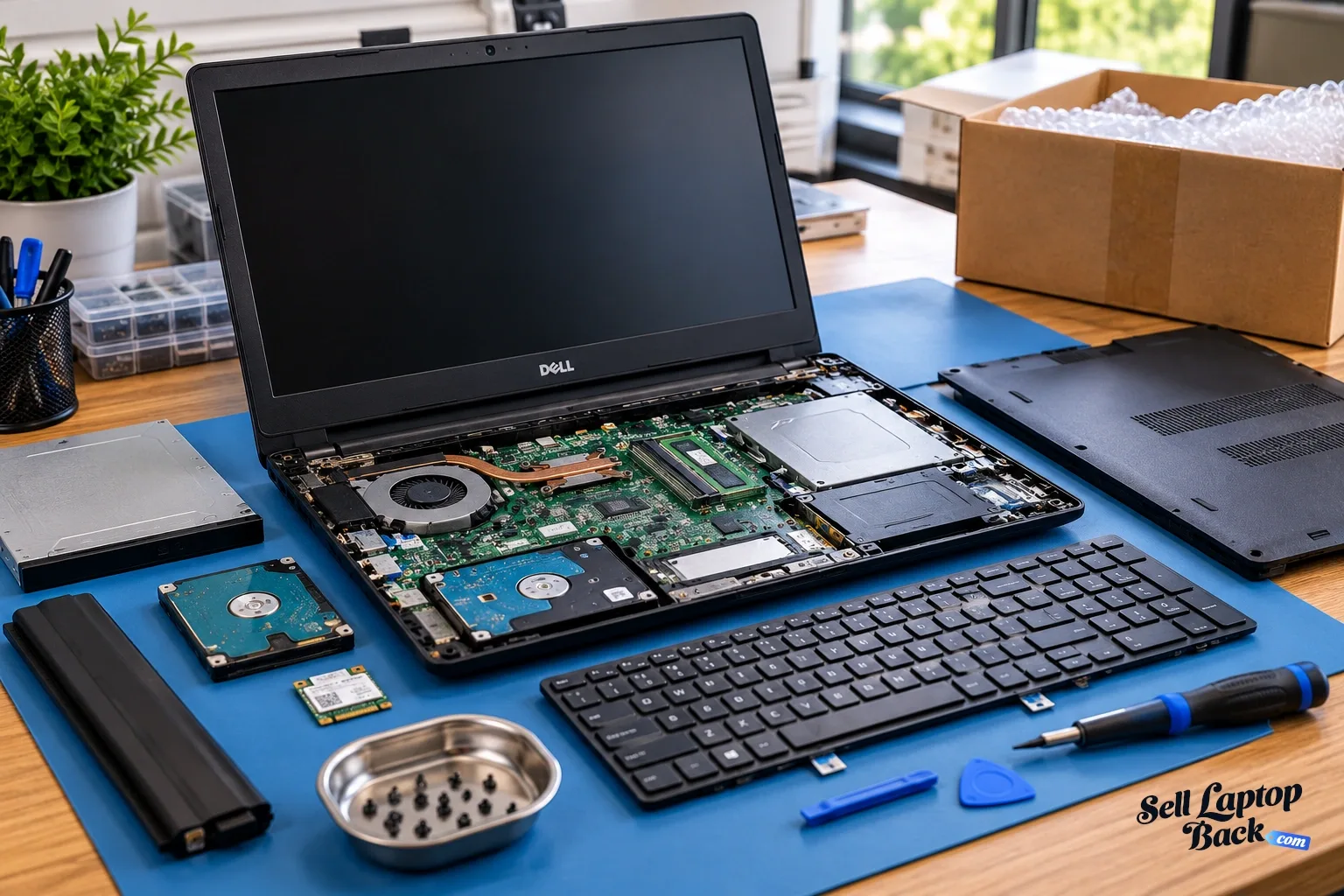
- 2. Essential Tools & Workspace Setup for Lenovo Legion 5 15IAH7 Disassembly
- 🛠️ Basic Repair Toolkit
- 🔧 Specialized Tools for Gaming Laptops
- 🏗️ Professional Workspace Setup
- ⚠️ Safety Equipment & Precautions
- 📦 Recommended Replacement Parts
- 💡 Budget-Friendly Tool Alternatives
- ✅ Pre-Repair Preparation Checklist
- 💰 Tool Investment vs. Value Analysis
- 3. Lenovo Legion 5 15IAH7 Bottom Removal: Gaming Laptop Internal Access
- ⚠️ Gaming Laptop Safety Protocols
- 🔧 Step-by-Step Removal Process
- 🛡️ Preventing Damage to Premium Chassis
- 🔍 Premium Internal Layout Overview
- ⚙️ Legion 5 Specific Features
- 📸 Documentation for Maximum Resale
- ❌ Common Premium Laptop Mistakes
- 🔋 Essential: Battery Disconnection
- 4. Lenovo Legion 5 15IAH7 RAM Upgrade: Gaming Performance Optimization
- 💾 Gaming Memory Specifications
- 🔄 Gaming Configuration Options
- 🔧 Installation Process
- 🏆 Recommended Gaming Modules
- ⚡ Gaming Optimization Tips
- 🎮 Gaming Performance Benefits
- 💰 Selling With Upgraded RAM
- 📝 Important Gaming Compatibility Notes
- 5. Lenovo Legion 5 15IAH7 SSD Upgrade: Gen4 NVMe Gaming Performance
- 💽 Gaming Storage Specifications
- ⚡ Gen4 Performance Comparison
- 🔧 Installation Process
- 🏆 Recommended Gaming SSDs
- 🔄 Game Data Migration
- ⚙️ Gaming Optimization Settings
- 🎮 Gaming Performance Benefits
- 💰 Selling With Upgraded SSD
- 💾 Dual Drive Setup Advantages
- 6. Lenovo Legion 5 15IAH7 Cooling System Maintenance & Thermal Paste Replacement
- ❄️ Cooling System Specifications
- 🧴 Thermal Paste Options
- 🧹 Cleaning Process
- 🎯 Thermal Paste Application
- 📏 Thermal Pad Replacement
- 📊 Performance Testing
- 💰 Resale Value Benefits
- ⏰ Recommended Maintenance Schedule
- 7. Lenovo Legion 5 15IAH7 Battery Replacement & Power Management
- 🔋 Battery Specifications
- ⚠️ Safety Precautions
- 🛠️ Replacement Process
- ⚡ Battery Calibration
- 📊 Health Reporting
- 🎮 Gaming Power Optimization
- 🌱 Battery Conservation Mode
- 💰 Maximizing Resale Value
- 📈 Resale Value Impact
- 8. Lenovo Legion 5 15IAH7 Keyboard & Trackpad Replacement Guide
- ⌨️ Component Specifications
- ⚠️ Safety Precautions
- 🔧 Keyboard Replacement Process
- 🖱️ Trackpad Replacement Process
- 🔌 Cable Connection Guide
- 🧪 Testing & Calibration
- 🔧 Common Issues & Solutions
- 💰 Resale Value Impact
- 💡 Professional Tips
- 9. Lenovo Legion 5 15IAH7 Display Assembly Replacement: Gaming Visual Upgrade
- 🖥️ Display Specifications
- ⚠️ Safety Precautions
- 🔧 Replacement Process
- 🔄 Display Upgrade Options
- 🔗 Display Connector Types
- 🎨 Display Calibration
- 🔍 Quality Testing
- 💰 Maximizing Resale Value
- 🎮 Gamer Benefits
- 10. Lenovo Legion 5 15IAH7 Motherboard Access: Advanced Component-Level Repairs
- ⚠️ Advanced Procedure Warning
- 🔧 Motherboard Specifications
- 🛠️ Motherboard Access Process
- 🔄 Replaceable Components
- ⚡ Safety Protocol
- 🔍 Post-Repair Testing
- 💰 Resale Value Impact
- 🏢 When to Use Professional Services
- 11. Lenovo Legion 5 15IAH7 Professional Reassembly & Performance Testing
- 🛠️ Reassembly Preparation
- 🔧 Step-by-Step Reassembly Process
- ❄️ Thermal Management
- 🔍 Initial Power-On Testing
- ⚡ Comprehensive Performance Testing
- 🎮 Gaming Performance Validation
- ✅ Quality Assurance Checklist
- 💰 Resale Value Enhancement
- 12. Maximizing Resale Value After Upgrades for Lenovo Legion 5 15IAH7
- 📊 Gaming Laptop Market Analysis
- 💰 Competitive Pricing Strategy
- 📋 Professional Documentation Package
- ✨ Presentation & Quality Enhancement
- 🌐 Optimal Sales Platforms
- 📈 Listing Optimization Strategies
- 🎯 Crafting Your Value Proposition
- ⏰ Optimal Selling Timing
- 🏢 Professional Service Options
- 13. Where to Get the Best Cash for Your Upgraded Lenovo Legion 5 15IAH7
- 📊 Marketplace Comparison Guide
- 🏆 Specialized Electronics Buyback Services
- 🌐 Private Marketplaces
- 👥 Specialized Communities
- 🔄 Manufacturer & Retailer Trade-In
- 💡 Maximizing Your Cash Return
- 🛡️ Safety & Security
- 🚀 Success Tips for Maximum Cash
- Need to Sell Your Lenovo Laptop? Get Instant Cash!
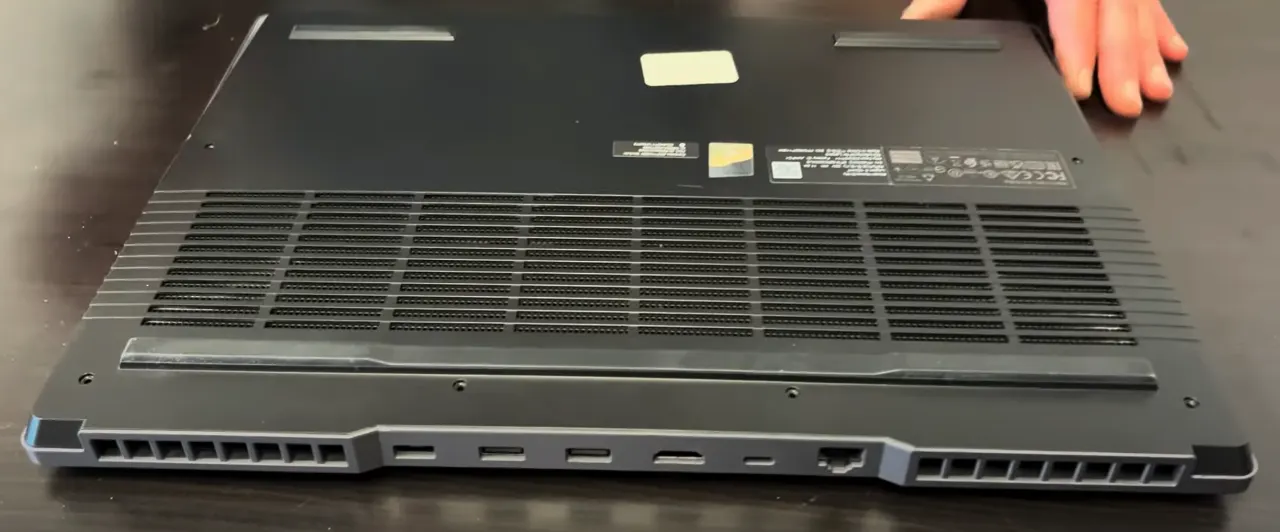
1. Lenovo Legion 5 15IAH7 Pre-Disassembly: Maximizing Your Gaming Laptop's Resale Value
💰 Gaming Laptop Resale Valuation
| Component | Upgrade Impact | Value Increase |
|---|---|---|
| RAM (16GB → 32GB) | Enhanced gaming and multitasking performance | +$120-$180 |
| SSD (512GB → 2TB Gen4) | Faster load times and massive storage | +$150-$220 |
| New Battery | Extended gaming sessions and portability | +$90-$140 |
| Thermal Paste Upgrade | Improved cooling and sustained performance | +$40-$70 |
| Professional Cleaning | Optimal thermals and quieter operation | +$50-$80 |
🛠️ Essential Gaming Laptop Tools
- Basic Toolkit:
- PH0 and PH00 Phillips screwdrivers
- Plastic spudger set and opening tools
- Anti-static wrist strap
- High-quality thermal paste
- Recommended Professional Gear:
- Magnetic project mat with component organizers
- ESD-safe work surface
- Magnifying lamp for small connectors
- Quality thermal compound
🔍 Model Verification
- Locate model number on bottom casing (15IAH7H, 15IAH7A, etc.)
- Verify specifications on Lenovo official support page
- Confirm CPU/GPU combination (Intel Core i7/i9, RTX 3060/3070 Ti)
- Check current BIOS version and warranty status
- Note Legion-specific features and lighting
⚡ Preparation Steps
- Data Backup:
- Use Lenovo Cloud Recovery or imaging software
- Create system image for full restoration
- Export Legion Edge profiles and settings
- Backup game libraries and creative projects
- Documentation:
- Photograph laptop from all angles in current condition
- Record current performance benchmarks
- Generate battery health report
- Run Lenovo diagnostics through Vantage software
- Capture thermal performance under load
📈 Gaming Market Resale Preparation
- Gamer Market:
- Highlight gaming performance improvements
- Emphasize thermal and cooling upgrades
- Note RGB lighting and Legion-specific features
- Content Creators:
- Focus on rendering and export performance
- Highlight color accuracy and display quality
- Show upgrade potential for creative workflows
- Student Gamers:
- Emphasize portability and battery life
- Highlight value for engineering/design students
- Note gaming and productivity balance
⚠️ Gaming Laptop Safety Precautions
- Disconnect power and remove all peripherals
- Work on ESD-safe surface with proper grounding
- Handle components by edges only to prevent damage
- Keep screws organized by component and location
- Take photos at each disassembly stage
🔍 Gaming Market Research
- Check sold listings for similar upgraded Legion 5 models
- Research gaming laptop demand cycles
- Note premium prices for specific GPU configurations
- Consider esports and streaming community trends
2. Essential Tools & Workspace Setup for Lenovo Legion 5 15IAH7 Disassembly
🛠️ Basic Repair Toolkit
- Screwdrivers:
- Phillips #00 precision screwdriver
- Phillips #0 standard screwdriver
- Magnetic tip recommended for easier handling
- Spudger or plastic opening tool set
- Essential Tools:
- Plastic guitar picks or opening cards
- Tweezers (non-magnetic, anti-static)
- Anti-static wrist strap (critical for gaming components)
- Microfiber cleaning cloth
- Isopropyl alcohol (90%+) for cleaning and thermal paste removal
🔧 Specialized Tools for Gaming Laptops
- Thermal Management Tools:
- High-quality thermal paste (non-conductive)
- Thermal pad assortment kit (various thicknesses)
- Plastic pry tools for heatsink removal
- Alcohol wipes for surface preparation
- Optional but Recommended:
- Magnetic project mat with component organizers
- Magnifying lamp or head-mounted magnifier
- ESD-safe work surface
- Compressed air for dust removal
🏗️ Professional Workspace Setup
| Workspace Element | Recommendation | Importance Level |
|---|---|---|
| Work Surface | Clean, flat, static-free surface (4'x2' minimum) | Critical |
| Lighting | Bright, shadow-free illumination (500+ lumens) | Critical |
| Organization | Small containers for screw organization | High |
| ESD Protection | Anti-static mat and wrist strap (properly grounded) | High |
| Comfort | Ergonomic seating and proper height | Medium |
⚠️ Safety Equipment & Precautions
- ESD Protection:
- Anti-static wrist strap (properly grounded)
- ESD-safe work mat
- Avoid working on carpeted surfaces
- Remove jewelry and static-producing clothing
- Personal Safety:
- Safety glasses for component handling
- Cut-resistant gloves for sharp edges
- Proper ventilation if using chemicals
- First aid kit readily available
📦 Recommended Replacement Parts
- Performance Upgrades:
- DDR5 SO-DIMM RAM (4800MHz or 5200MHz)
- Gen4 NVMe SSD (M.2 2280 format)
- High-performance thermal paste
- Quality thermal pads for VRMs
- Maintenance Parts:
- Replacement cooling fans if needed
- New battery if current one is degraded
- Keyboard/trackpad components if repairing
- Display assembly for screen replacement
💡 Budget-Friendly Tool Alternatives
- Professional Tools:
- Plastic spudger set ($10-$20)
- Precision screwdriver kit ($15-$30)
- Anti-static wrist strap ($5-$10)
- Basic thermal paste ($8-$15)
- Household Alternatives:
- Old credit card instead of plastic opening tools
- Guitar picks instead of plastic pry tools
- Small containers for screw organization
- Rubbing alcohol instead of specialized cleaners
✅ Pre-Repair Preparation Checklist
- Workspace Setup:
- Clear, clean, well-lit work area
- ESD protection implemented and tested
- All tools organized and accessible
- Containers ready for screw organization
- Safety Preparation:
- Safety glasses and gloves available
- Power completely disconnected
- Battery removed from laptop
- First aid kit accessible
- Documentation Ready:
- Camera or phone for photos
- Notebook for taking notes
- Guide or instructions available
- Reference materials handy
💰 Tool Investment vs. Value Analysis
| Tool Investment | Cost Range | Value Added to Repair | ROI Potential |
|---|---|---|---|
| Basic Tool Set | $25-$50 | Professional quality repair | 300-500% |
| Premium Tools | $75-$150 | Faster, safer repairs | 200-300% |
| Minimum Tools | $10-$20 | Adequate for basic repair | 400-600% |
0:23 Bottom Case 1:10 Battery 1:52 Storage SSD 2:41 WiFi Card 3:15 RAM Memory 3:38 Heatsink and Cooling Fans 5:45 IO USB Board 7:55 Motherboard 8:45 Speakers 9:35 Touchpad 10:40 Keyboard 10:52 Hinge Cover 12:00 Hinges 13:24 Palmrest Assembly 13:39 Display Assembly 14:12 Adhesive Strips 14:50 LCD Screen 15:10 Video Cable 15:22 Lid Back Cover
3. Lenovo Legion 5 15IAH7 Bottom Removal: Gaming Laptop Internal Access
⚠️ Gaming Laptop Safety Protocols
- Complete Power Down:
- Shut down completely (not sleep or hibernate)
- Disconnect power adapter and all peripherals
- Remove all external devices and dongles
- Hold power button for 15 seconds to discharge capacitors
- Professional Workspace Setup:
- Use ESD-safe mat or non-static surface
- Organize screws by type and location using labeled containers
- Ensure adequate lighting for small gaming components
- Keep magnetic tools away from sensitive electronics
🔧 Step-by-Step Removal Process
- Remove All Screws:
- 11 screws total (varies by specific model)
- 9x short Phillips screws around perimeter
- 2x longer screws near hinge area (note different lengths)
- Check for hidden screws under rubber feet
- Use magnetic PH0 screwdriver to prevent losing screws
- Release Premium Clips:
- Start near the front edge (typically weakest point)
- Insert plastic spudger at 30° angle to avoid damage
- Work methodically around all edges, alternating sides
- Listen for distinct "click" release sounds
- Use guitar picks for tight spaces near ports
- Lift Cover Carefully:
- Lift from front edge first near touchpad area
- Watch for stubborn clips near ventilation areas
- Check for any missed screws or connections
- Set cover aside on soft, clean surface
- Note cable routing and connector locations
🛡️ Preventing Damage to Premium Chassis
| Risk Area | Prevention Technique | Resale Impact |
|---|---|---|
| Plastic Clips | Alternate sides every 3-4 clips, apply even pressure | Intact clips = +$60-100 value |
| Paint & Finish | Microfiber cloth under tools, avoid metal implements | Flawless finish = +$50-80 |
| Screw Threads | Apply downward pressure while turning, use correct size | Undamaged = +$20-40 |
| Internal Components | Check clearance before lifting, mind ribbon cables | No damage = +$100-160 |
| Rubber Feet | Heat gently with hairdryer before removal if needed | Intact feet = +$15-30 |
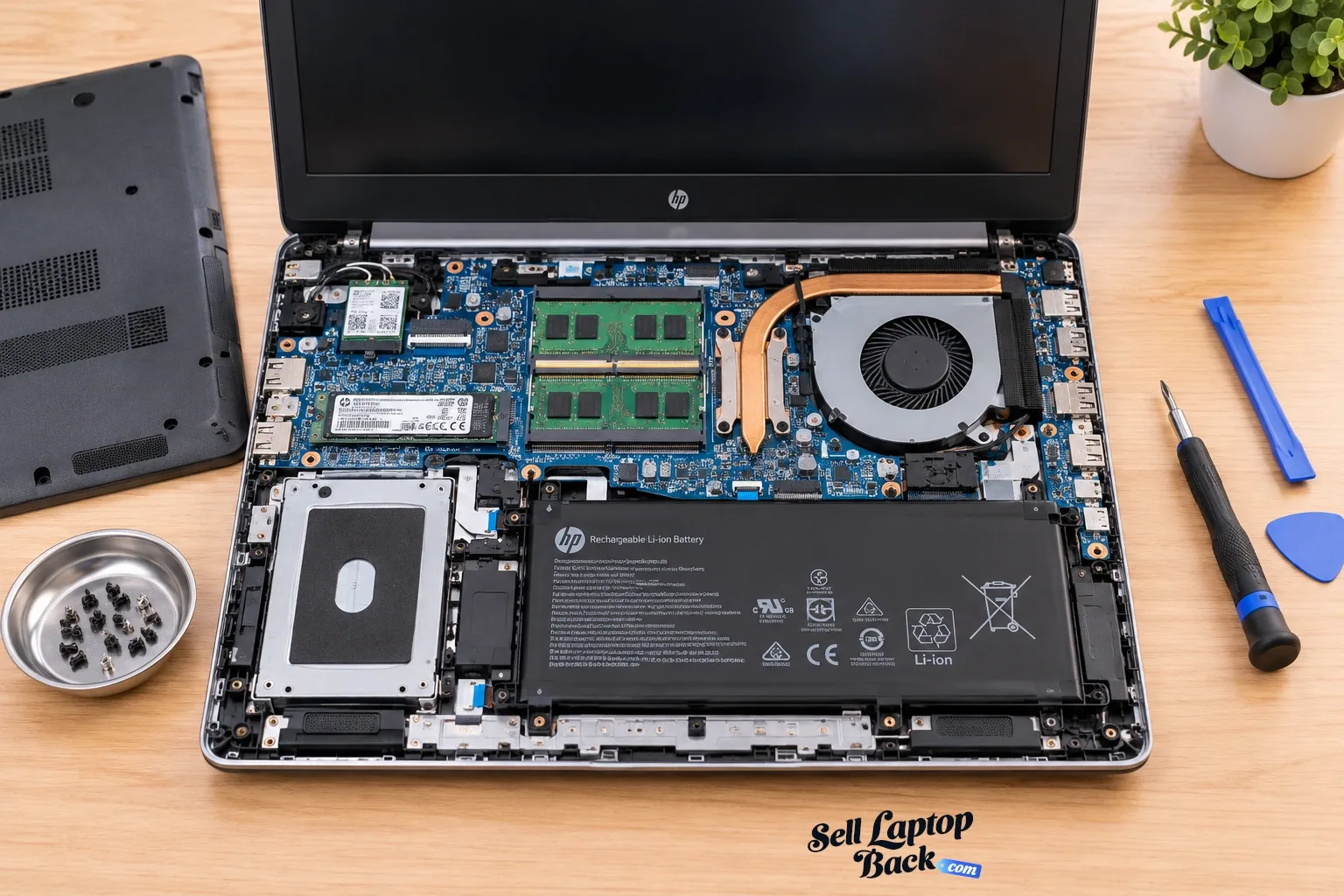
🔍 Premium Internal Layout Overview
- Gaming Upgrade Points Visible:
- Two DDR5 RAM slots (user-upgradeable)
- Two M.2 2280 PCIe 4.0 SSD slots
- Advanced cooling system with multiple heat pipes
- Wi-Fi 6 card (M.2 2230 with Intel AX201/AX211)
- Battery Access:
- 80Wh 4-cell battery with premium capacity
- Professional-grade connector with locking mechanism
- Multiple mounting points and cable management
- Battery health indicator circuit
- Cooling System:
- Dual fans with dedicated heat pipes
- Multiple thermal sensors throughout
- Accessible heat sink and thermal paste areas
- Dust accumulation areas to clean during access
⚙️ Legion 5 Specific Features
- Coldfront 4.0 cooling technology
- Nahimic audio enhancement components
- RGB lighting control circuitry
- Premium build materials and construction
- Advanced power delivery system for gaming
📸 Documentation for Maximum Resale
- Photograph screw locations and lengths before removal
- Record factory seal condition and any existing damage
- Document internal component layout and upgrade potential
- Note any pre-existing wear or manufacturer marks
- Capture premium features for marketing
❌ Common Premium Laptop Mistakes
- Forcing the cover when clips aren't released
- Using metal tools that can scratch surfaces
- Missing hidden screws under rubber feet or labels
- Not disconnecting battery before internal work
- Mixing up screw lengths during reassembly
- Damaging delicate ribbon cables during access
🔋 Essential: Battery Disconnection
- Locate Battery Connector:
- Find main battery connector on motherboard
- Identify locking mechanism (usually sliding or lifting)
- Note orientation for reassembly
- Safe Disconnection:
- Gently release locking mechanism
- Pull connector straight out (not at angle)
- Do not pull on wires directly
- Inspect connector for any signs of damage
- Power Drain:
- Press and hold power button for 30 seconds
- This discharges any remaining power in system
- Ensures complete safety before component work
4. Lenovo Legion 5 15IAH7 RAM Upgrade: Gaming Performance Optimization
💾 Gaming Memory Specifications
- Supported Types:
- DDR5 SO-DIMM (262-pin)
- 4800MHz (12th Gen) or 5200MHz (13th Gen)
- Dual-channel configuration (2 slots)
- Maximum 64GB (2x32GB) configuration
- Compatibility Verification:
- Check Lenovo official specifications
- Verify CPU generation (Intel 12th/13th Gen)
- 1.1V operating voltage
- Confirm maximum supported speed in BIOS
🔧 Installation Process
- Access RAM Slots (after bottom cover removal and battery disconnect)
- Release Existing Modules:
- Push outward on side clips simultaneously
- Modules will pop up at 30° angle
- Remove by pulling straight out gently
- Handle by edges only to prevent ESD damage
- Install New RAM:
- Align notch with slot key
- Insert at 30° angle with gentle pressure
- Press down firmly until clips engage audibly
- Verify both ends are equally seated
- Gaming Verification:
- Boot to BIOS (F2 during startup)
- Check recognized capacity and speed
- Run Lenovo diagnostic memory test
- Verify operation in CPU-Z or HWInfo
🏆 Recommended Gaming Modules
- Performance Gaming:
- Crucial CT2K16G52C42S5 (32GB DDR5-5200 Kit)
- Optimized for gaming and multitasking
- Excellent compatibility with Legion 5
- Premium Low-Latency:
- G.Skill Ripjaws SO-DIMM 32GB DDR5-5200
- Excellent for high-FPS competitive gaming
- Low CAS latency for responsive performance
- Maximum Capacity:
- Kingston Fury Impact 64GB DDR5-4800 Kit
- Ideal for content creators and heavy multitasking
- Perfect for streaming and video editing
⚡ Gaming Optimization Tips
- Run memory stability tests for gaming reliability
- Update BIOS to latest version for best compatibility
- Enable XMP profiles in BIOS if supported
- Check Lenovo Vantage for performance profiles
- Monitor temperatures with HWInfo during gaming sessions
🎮 Gaming Performance Benefits
- Higher FPS Stability: Reduced stuttering in demanding games
- Streaming Performance: Smooth gameplay while streaming
- Future-Proofing: Ready for next-gen game requirements
- Multitasking: Game + Discord + browser without slowdowns
- Content Creation: Faster rendering and video editing
💰 Selling With Upgraded RAM
- Gamer Documentation:
- Save original purchase receipts
- Include gaming benchmark comparisons
- Provide memory test results for stability proof
- Document before/after performance metrics
- Marketing Advantages:
- "64GB DDR5 for ultimate gaming performance"
- "Eliminates stuttering in demanding games"
- "Perfect for streaming and content creation"
- "Future-proofed for next-gen gaming"
- Target Markets:
- Serious Gamers: Emphasize FPS stability and performance
- Content Creators: Highlight rendering and multitasking
- Streamers: Note simultaneous gaming and streaming capability
- Students: Focus on gaming and productivity balance
📝 Important Gaming Compatibility Notes
- Intel 12th Gen supports up to 4800MHz DDR5
- Intel 13th Gen supports up to 5200MHz DDR5
- Mixed speed modules run at slowest speed
- Verify compatibility with Lenovo QVL list
- Dual-channel configuration requires matched pairs
5. Lenovo Legion 5 15IAH7 SSD Upgrade: Gen4 NVMe Gaming Performance
⚡ Gen4 Performance Comparison
| SSD Type | Read Speed | Write Speed | Gaming Benefit | Resale Value Impact |
|---|---|---|---|---|
| Gen3 NVMe | 3,500 MB/s | 3,000 MB/s | Good for general gaming | +$100-$160 |
| Gen4 NVMe | 7,000 MB/s | 6,000 MB/s | Excellent for fast loading | +$150-$220 |
| Premium Gen4 | 7,400 MB/s | 6,800 MB/s | Ideal for DirectStorage | +$180-$250 |
| Dual Drive Setup | 7,200 MB/s | 6,500 MB/s | OS + Games separation | +$200-$300 |
🔧 Installation Process
- Single Drive Installation:
- Locate M.2 slots (typically near RAM and battery)
- Insert SSD at 30° angle (keyed design)
- Secure with M2x3mm screw (included with SSDs)
- Apply thermal pad if using high-performance drive
- Ensure proper alignment with standoff
- Dual Drive Configuration:
- Primary slot: OS and applications
- Secondary slot: Games and media files
- Check clearance under bottom cover
- Use thin thermal pads (0.5-1.0mm)
- Ensure no pressure on components
- Gaming Configuration:
- Enable PCIe 4.0 in BIOS if available
- Set up game library partitions
- Configure DirectStorage if supported
- Optimize virtual memory settings
🏆 Recommended Gaming SSDs
- Performance Gaming:
- Samsung 980 Pro 2TB (Gen4 excellence)
- Excellent balance of speed and reliability
- Proven compatibility with Legion 5
- Premium Gen4:
- WD Black SN850X 2TB with heatsink
- Top-tier performance for competitive gaming
- Excellent thermal management
- Value Option:
- Crucial P5 Plus 2TB
- Great gaming performance at mid-range price
- Good reliability and warranty
- Capacity Focused:
- Sabrent Rocket 4 Plus 4TB
- Massive storage for game libraries
- Excellent for content creators
🔄 Game Data Migration
- Clean Installation:
- Download Windows from Microsoft
- Install Lenovo drivers from Lenovo Support
- Best for performance, removes bloatware
- Fresh game installations recommended
- Game Data Migration:
- Use Macrium Reflect or Clonezilla for system cloning
- Steam Library backup and restore functionality
- Game save cloud synchronization
- Manual game file transfer for large libraries
⚙️ Gaming Optimization Settings
- Enable TRIM:
fsutil behavior set DisableDeleteNotify 0 - Update SSD firmware through manufacturer tools
- Disable defragmentation for SSDs
- Configure write caching in Device Manager
- Set power management to maximum performance
- Run CrystalDiskMark for performance validation
- Enable game mode in Windows settings
🎮 Gaming Performance Benefits
- Load Times: Reduced from 30+ seconds to under 5 seconds
- Level Streaming: Seamless open-world exploration
- Game Installation: Faster downloads and installations
- DirectStorage: Instant asset loading in supported games
- Multitasking: Game + recording + streaming simultaneously
- Texture Streaming: Higher resolution textures without stuttering
💰 Selling With Upgraded SSD
- Gamer Documentation:
- CrystalDiskMark benchmark screenshots
- Drive health report (CrystalDiskInfo)
- Original purchase receipt for SSD
- Game load time comparison videos
- Marketing Advantages:
- "Gen4 NVMe for instant game loading"
- "Massive storage for entire game library"
- "DirectStorage ready for next-gen games"
- "Eliminates loading screens and stuttering"
- Performance Claims:
- "Games load in under 5 seconds"
- "7,000MB/s read speeds for seamless gameplay"
- "Perfect for streaming and content creation"
- "Ready for next-generation gaming technology"
💾 Dual Drive Setup Advantages
- Performance Separation: OS on one drive, games on another
- Data Safety: Game library survives OS issues
- Flexible Upgrades: Add storage without reinstalling
- Backup Strategy: Easy game backup and restoration
- Resale Value: Dual drives command premium prices
6. Lenovo Legion 5 15IAH7 Cooling System Maintenance & Thermal Paste Replacement
❄️ Cooling System Specifications
| Component | Specification | Maintenance Interval | Performance Impact |
|---|---|---|---|
| Cooling System | Coldfront 4.0 with dual fans | 6-12 months | 10-15°C improvement |
| Heat Pipes | 4 copper heat pipes | Inspection only | Critical for heat transfer |
| Fans | Dual 12V turbo fans | 3-6 months cleaning | 5-8°C improvement |
| Thermal Interface | Stock thermal paste/pads | 12-18 months | 8-12°C improvement |
🧹 Cleaning Process
- Fan Cleaning:
- Use compressed air to remove dust from fins
- Hold fan blades to prevent overspinning
- Clean fan blades with isopropyl alcohol
- Check for bearing wear or noise
- Heatsink Cleaning:
- Remove dust from fin arrays with brush
- Use compressed air for deep cleaning
- Check for bent fins and straighten carefully
- Ensure all airflow paths are clear
- Vent Cleaning:
- Clean intake and exhaust vents thoroughly
- Remove dust from ventilation grilles
- Check for obstructions in airflow paths
- Ensure dust filters are clean (if present)
🎯 Thermal Paste Application
- Old Paste Removal:
- Use isopropyl alcohol (90%+) and lint-free cloth
- Gently wipe old paste from CPU and GPU dies
- Clean heatsink surface thoroughly
- Ensure no residue remains
- Application Methods:
- Pea Method: Small dot in center (most common)
- X Method: X pattern for larger dies
- Spread Method: Even manual spreading
- Use approximately rice-grain amount
- Heatsink Reinstallation:
- Lower heatsink straight down evenly
- Tighten screws in criss-cross pattern
- Follow specified torque sequence
- Ensure even pressure distribution
📏 Thermal Pad Replacement
| Component | Recommended Thickness | Performance Impact | Replacement Frequency |
|---|---|---|---|
| VRMs (Power Delivery) | 1.0mm - 1.5mm | 10-15°C improvement | 24 months |
| VRAM | 1.0mm - 2.0mm | 5-10°C improvement | 24 months |
| Chipsets | 0.5mm - 1.0mm | 3-5°C improvement | As needed |
📊 Performance Testing
- Before/After Comparison:
- Record idle temperatures before maintenance
- Run stress tests (Prime95, FurMark)
- Monitor gaming temperatures
- Document fan noise levels
- Stress Testing:
- Run extended stability tests
- Monitor for thermal throttling
- Check clock speed maintenance
- Verify fan curve effectiveness
- Real-World Testing:
- Test with demanding games
- Monitor during extended sessions
- Check performance consistency
- Verify noise levels are acceptable
💰 Resale Value Benefits
- Documentation Advantages:
- Before/after temperature comparisons
- Performance benchmark results
- Professional maintenance records
- Quality component documentation
- Marketing Points:
- "Professionally maintained cooling system"
- "Premium thermal paste application"
- "Optimized thermal performance"
- "Reduced thermal throttling"
- Value Impact:
- 15-25% higher resale value
- Faster sale completion
- Reduced buyer concerns
- Premium pricing justification
⏰ Recommended Maintenance Schedule
- Monthly:
- External vent cleaning
- Basic dust removal
- Performance check
- Quarterly:
- Thorough fan cleaning
- Heatsink inspection
- Temperature validation
- Annual:
- Complete disassembly cleaning
- Thermal paste replacement
- Full performance testing
7. Lenovo Legion 5 15IAH7 Battery Replacement & Power Management
🔋 Battery Specifications
| Battery Model | Capacity | Voltage | Compatibility | Gaming Runtime |
|---|---|---|---|---|
| L20C4PF1 (OEM) | 80Wh | 15.4V | All 15IAH7 models | 2-3 hours gaming |
| L20C4PF2 | 80Wh | 15.4V | 2023-2024 models | 2-3 hours gaming |
| Premium Aftermarket | 80-82Wh | 15.4V | Verify fitment | 2-3 hours gaming |
Always verify compatibility using your Lenovo model number before purchase.
⚠️ Safety Precautions
- Complete Power Down:
- Shut down completely (not sleep/hibernate)
- Disconnect 300W power adapter
- Remove all peripherals and dongles
- Follow ESD protection procedures
- Professional Workspace Setup:
- Use anti-static wrist strap
- Work on static-safe surface
- Organize components in labeled containers
- Maintain clean work environment
🛠️ Replacement Process
- Access Battery Compartment (after bottom cover removal):
- Locate battery positioned toward front edge
- Identify connector and mounting screw locations
- Note cable routing for proper reassembly
- Document screw locations with photography
- Disconnect Battery Safely:
- Gently lift locking mechanism on power connector
- Pull connector straight out (avoid angled pressure)
- Do not pull on wires directly
- Inspect connector for any signs of damage
- Remove Existing Battery:
- Remove 4-6 retention screws (varies by model)
- Note screw lengths and precise locations
- Lift battery at 30° angle from front edge
- Observe orientation markings for replacement
- Install New Gaming Battery:
- Align new battery with screw holes and connector
- Secure with original screws
- Reconnect power connector until audible click
- Verify secure connection and proper seating
⚡ Battery Calibration
- Charge to 100% without interruption (overnight recommended)
- Discharge completely (gaming until automatic shutdown)
- Recharge to 100% again without interruption
- Repeat calibration cycle 2-3 times for optimal accuracy
- Use Lenovo Vantage for advanced battery settings
📊 Health Reporting
- Open Command Prompt as Administrator
- Run:
powercfg /batteryreport - Report saves as battery-report.html in current directory
- Critical metrics to document:
- DESIGN CAPACITY vs FULL CHARGE CAPACITY
- Battery cycle count and age
- Recent usage history and wear level
- Gaming vs productivity runtime estimates
🎮 Gaming Power Optimization
- Lenovo Vantage Settings:
- Quiet mode for maximum battery life
- Balance mode for mixed usage
- Performance mode for plugged-in gaming
- Custom mode for advanced users
- Windows Power Plans:
- Lenovo recommended power plans
- Custom gaming power profiles
- GPU power management settings
- Background process optimization
- Game-Specific Optimization:
- Frame rate caps for battery gaming
- Resolution scaling adjustments
- Graphics quality presets
- Background application management
🌱 Battery Conservation Mode
- What It Does:
- Limits maximum charge to 60-80%
- Reduces battery wear during extended AC use
- Extends overall battery lifespan
- Available in Lenovo Vantage software
- When to Use:
- When primarily using AC power
- For desktop replacement scenarios
- During extended gaming sessions
- When storing laptop for periods
- When to Disable:
- When needing maximum mobility
- For travel or all-day use
- When maximum runtime is required
💰 Maximizing Resale Value
- Professional Documentation:
- Photograph OEM battery labels and part numbers
- Include comprehensive battery health reports
- Save purchase receipts for genuine components
- Record calibration process and results
- Provide before/after performance comparisons
- Marketing Advantages:
- "Genuine Lenovo replacement battery"
- "95%+ health capacity with professional calibration"
- "2-3 hours of mobile gaming capability"
- "Fast charge ready for quick power top-ups"
- "Perfect for LAN parties and mobile gaming"
- Gamer Assurance:
- Offer 90-day performance guarantee on workmanship
- Provide comprehensive calibration documentation
- Include gaming power management tips
- Share battery maintenance best practices
📈 Resale Value Impact
| Battery Condition | Health Percentage | Gaming Runtime | Value Impact |
|---|---|---|---|
| New OEM Replacement | 100% | 2.5-3 hours | +$150-$200 |
| Excellent (90%+) | 90-99% | 2-2.5 hours | +$100-$150 |
| Good (80-89%) | 80-89% | 1.5-2 hours | +$50-$100 |
| Poor (<80%) | Below 80% | Under 1 hour | -$100-$200 |
8. Lenovo Legion 5 15IAH7 Keyboard & Trackpad Replacement Guide
⌨️ Component Specifications
| Component | Type | Features | Compatibility |
|---|---|---|---|
| Keyboard | RGB Backlit, 100-key | Anti-ghosting, 1.5mm travel | Region-specific layouts |
| Trackpad | Precision Glass | Multi-touch, Windows Precision | Universal |
| RGB Lighting | Per-key RGB | Corsair iCUE integration | Software dependent |
⚠️ Safety Precautions
- Complete Power Down:
- Disconnect power adapter and remove battery
- Discharge capacitors by holding power button
- Use anti-static wrist strap throughout process
- Component Protection:
- Handle ribbon cables by edges only
- Use plastic tools to avoid scratches
- Keep screws organized by location
- Document cable routing with photos
🔧 Keyboard Replacement Process
- Access Keyboard:
- Remove bottom cover and battery
- Disconnect keyboard ribbon cable from motherboard
- Remove palm rest assembly (if required)
- Note screw locations and lengths
- Remove Old Keyboard:
- Release plastic clips around keyboard perimeter
- Use plastic spudger to gently lift keyboard
- Disconnect any additional lighting cables
- Remove from top side through display bezel
- Install New Keyboard:
- Align new keyboard with mounting points
- Connect ribbon cables before final seating
- Press evenly to engage all clips
- Reconnect all cables to motherboard
🖱️ Trackpad Replacement Process
- Access Trackpad:
- Remove bottom cover and battery
- Disconnect trackpad ribbon cable
- Remove palm rest assembly if necessary
- Note mounting screw locations
- Remove Old Trackpad:
- Remove mounting screws (typically 4-6)
- Gently lift trackpad assembly
- Disconnect grounding wires if present
- Clean mounting surface
- Install New Trackpad:
- Position new trackpad in mounting area
- Secure with original screws
- Reconnect ribbon cable and grounding
- Test functionality before reassembly
🔌 Cable Connection Guide
| Connection | Type | Location | Precautions |
|---|---|---|---|
| Keyboard Main | 20-pin ZIF connector | Near center of motherboard | Lift latch before removal |
| RGB Lighting | 4-pin connector | Near keyboard connector | Note orientation |
| Trackpad | 10-pin ZIF connector | Below keyboard connector | Secure latch after connection |
🧪 Testing & Calibration
- Keyboard Testing:
- Use online keyboard test tools
- Test every key for proper function
- Check anti-ghosting capabilities
- Verify RGB lighting functionality
- Trackpad Testing:
- Test multi-touch gestures
- Verify precision tracking
- Check button functionality
- Calibrate in Windows settings
- Software Configuration:
- Install Lenovo Vantage software
- Configure Corsair iCUE for RGB lighting
- Update drivers from Lenovo support site
- Customize keyboard shortcuts
🔧 Common Issues & Solutions
- Keyboard Problems:
- Non-responsive keys: Check ribbon connection
- RGB not working: Verify lighting cable connection
- Sticky keys: Clean under keycaps
- Wrong layout: Ensure region compatibility
- Trackpad Issues:
- Not detected: Check ZIF connector seating
- Jumpy cursor: Update drivers
- Button failure: Replace entire trackpad assembly
- Palm rejection: Adjust Windows settings
💰 Resale Value Impact
| Condition | Keyboard Quality | Trackpad Quality | Value Impact |
|---|---|---|---|
| Excellent | Perfect, all keys working | Smooth, responsive | +$100-$150 |
| Good | Minor wear, fully functional | Functional, minor wear | +$50-$80 |
| Poor | Missing keys, non-responsive | Non-functional | -$150-$250 |
💡 Professional Tips
- Documentation:
- Photograph all cable connections before disassembly
- Record screw locations and lengths
- Save receipts for replacement parts
- Document testing results
- Quality Parts:
- Use genuine Lenovo parts for best compatibility
- Verify region layout before purchase
- Check seller reputation and reviews
- Ensure RGB lighting compatibility
- Marketing Advantage:
- "Like-new keyboard and trackpad"
- "Full RGB lighting functionality"
- "Professional replacement with documentation"
- "Perfect for gaming and typing"
9. Lenovo Legion 5 15IAH7 Display Assembly Replacement: Gaming Visual Upgrade
🖥️ Display Specifications
| Display Type | Resolution | Refresh Rate | Response Time | Color Coverage |
|---|---|---|---|---|
| WQXGA IPS | 2560x1600 | 165Hz | 3ms | 100% sRGB |
| WUXGA IPS | 1920x1200 | 165Hz | 5ms | 100% sRGB |
| Premium Upgrade | 2560x1600 | 240Hz | 3ms | 100% DCI-P3 |
Verify compatibility using your Lenovo model number before purchase.
⚠️ Safety Precautions
- ESD Protection:
- Use anti-static wrist strap
- Work on ESD-safe surface
- Handle display by edges only
- Avoid pressure on LCD surface
- Workspace Preparation:
- Clean, well-lit workspace
- Soft microfiber cloth surface
- Magnetic tray for screw organization
- Proper lighting for delicate connectors
🔧 Replacement Process
- Initial Preparation:
- Power down completely and disconnect all cables
- Remove bottom cover and disconnect battery
- Ground yourself to prevent static discharge
- Lay laptop on soft, clean surface
- Bezel Removal:
- Use plastic spudger to gently release clips
- Start from bottom edge and work around perimeter
- Apply even pressure to avoid cracking bezel
- Note adhesive tape locations for reassembly
- Display Assembly Removal:
- Remove 4-6 display bracket screws
- Carefully disconnect display cable and antenna wires
- Note cable routing for proper reassembly
- Lift display assembly out carefully
- Hinge Considerations:
- Check hinge tension and smoothness
- Replace hinges if worn or damaged
- Lubricate hinge mechanisms if necessary
- Ensure proper alignment during reassembly
- New Display Installation:
- Transfer mounting brackets to new display
- Apply new adhesive tape around edges
- Connect display cable before final placement
- Test display before final assembly
🔗 Display Connector Types
| Connector Type | Pin Count | Compatibility | Visual Identification |
|---|---|---|---|
| 40-pin eDP | 40 pins | Standard for high refresh rate | Wider connector, dense pins |
| 30-pin eDP | 30 pins | Lower refresh rate models | Narrower connector |
🎨 Display Calibration
- Software Calibration:
- Use Windows built-in color calibration
- Adjust gamma and color temperature settings
- Create custom profiles for different uses
- Hardware Calibration:
- Consider colorimeter for professional results
- Calibrate for both gaming and content creation
- Save multiple ICC profiles
- Gaming Optimization:
- Set optimal refresh rate in display settings
- Configure game-specific visual settings
- Adjust overdrive settings if available
🔍 Quality Testing
- Dead Pixel Check:
- Use online pixel test tools
- Check for stuck or dead pixels
- Test multiple color backgrounds
- Document any issues immediately
- Backlight Uniformity:
- Test with solid gray backgrounds
- Check for backlight bleeding
- Test at different brightness levels
- Note any clouding or uneven illumination
- Color Accuracy:
- Test color gradients for banding
- Verify color representation accuracy
- Check white point consistency
💰 Maximizing Resale Value
- Documentation:
- Photograph display model numbers
- Include quality verification results
- Save purchase receipts for premium displays
- Document pixel perfection test results
- Marketing Advantages:
- "High refresh rate for smooth gaming"
- "Perfect display with no dead pixels"
- "Professional color calibration"
- "Excellent viewing angles"
- Buyer Assurance:
- Offer display performance guarantee
- Provide quality verification documentation
- Include optimization settings
🎮 Gamer Benefits
- Competitive Advantage:
- Higher refresh rates for smoother gameplay
- Faster response times for competitive gaming
- Better motion clarity in fast-paced games
- Visual Experience:
- Higher resolution for detailed graphics
- Better color accuracy for immersive experiences
- Improved contrast for dark scenes
- Content Creation:
- Color accuracy for photo/video work
- Higher resolution for detail work
- Better consistency for professional work
10. Lenovo Legion 5 15IAH7 Motherboard Access: Advanced Component-Level Repairs
⚠️ Advanced Procedure Warning
Motherboard-level repairs require professional expertise:
- Voiding warranty considerations
- ESD sensitivity of gaming components
- BGA component replacement risks
- Potential for irreversible damage
Consider Lenovo Professional Services for complex repairs.
🔧 Motherboard Specifications
| Component | Specification | Upgrade Potential | Replacement Complexity |
|---|---|---|---|
| CPU (Soldered) | Intel Core i5/i7/i9 12th/13th Gen | Not Upgradeable | Professional BGA Only |
| GPU (Soldered) | NVIDIA RTX 3060/3070 Ti | Not Upgradeable | Professional BGA Only |
| Wi-Fi Card | M.2 2230 (Intel AX201/AX211) | Easy Upgrade | Beginner |
| BIOS Chip | Soldered SPI Flash | Professional Reprogramming | Expert |
🛠️ Motherboard Access Process
- Complete Disassembly:
- Remove bottom cover and all accessible components
- Disconnect battery and all power sources
- Remove cooling system and heat pipes
- Detach all connected peripherals and daughterboards
- Document all connector locations with photos
- Cooling System Removal:
- Remove spring-loaded screws in correct order
- Lift heat pipes carefully to avoid damage
- Clean thermal paste from CPU and GPU
- Protect exposed components from contamination
- Motherboard Extraction:
- Remove all motherboard screws (note lengths and locations)
- Detach display cable and antenna connections
- Disconnect keyboard/trackpad ribbon cables
- Lift motherboard carefully from chassis
- Note standoff locations and screw types
🔄 Replaceable Components
⚡ Safety Protocol
- ESD Protection:
- Use anti-static wrist strap (properly grounded)
- Work on static-safe surface
- Handle components by edges only
- Use ESD-safe tools
- Component Handling:
- Avoid touching gold contacts or components
- Store components in anti-static bags
- Keep work area clean and organized
- Use proper tools for each task
🔍 Post-Repair Testing
- Basic Functionality Test:
- Power on without battery (adapter only)
- Check POST and BIOS access
- Verify fan operation and thermal readings
- Test basic input/output functionality
- Stress Testing:
- Run system stability tests
- Monitor temperatures under load
- Check for thermal throttling issues
- Verify performance levels
- Performance Validation:
- Run benchmark software
- Test actual gaming performance
- Monitor system stability
- Check for any issues
💰 Resale Value Impact
| Repair Type | Professional Documentation | Value Impact | Market Perception |
|---|---|---|---|
| Wi-Fi Card Upgrade | Receipts + performance tests | +$40-$60 | Positive (easy upgrade) |
| Professional Repair | Repair invoices + testing results | Varies (+$100-$300) | Neutral (depends on quality) |
| Board Replacement | Lenovo service documentation | Original value restored | Positive (like-new condition) |
🏢 When to Use Professional Services
- BGA Component Replacement:
- CPU/GPU reballing or replacement
- VRM component repairs
- Board-level trace repairs
- Warranty Considerations:
- Check remaining warranty status
- Consider Lenovo official repair services
- Evaluate cost vs. replacement value
- Complex Repairs:
- Water damage restoration
- Major component failure
- Complex electrical issues
11. Lenovo Legion 5 15IAH7 Professional Reassembly & Performance Testing
🛠️ Reassembly Preparation
- Workspace Organization:
- Clean all components with compressed air
- Organize screws according to original locations
- Verify all connectors are accessible and undamaged
- Check for any leftover tools or components
- Component Inspection:
- Verify all upgrades are properly installed
- Check for any damaged connectors or cables
- Ensure thermal paste application is adequate
- Confirm all screws and fasteners are accounted for
🔧 Step-by-Step Reassembly Process
- Motherboard Installation:
- Carefully lower motherboard into chassis
- Reconnect all ribbon cables and connectors
- Secure with original screws in correct locations
- Verify all connections are firm and properly seated
- Cooling System Reinstallation:
- Apply fresh thermal paste to CPU and GPU
- Carefully position heat pipes and cooling assembly
- Tighten screws in correct sequence (typically criss-cross pattern)
- Ensure even pressure distribution
- Component Reconnection:
- Reconnect battery connector
- Attach all remaining cables and connectors
- Verify Wi-Fi antenna connections
- Check speaker and microphone connections
- Bottom Cover Installation:
- Align cover properly with chassis
- Press gently to engage all clips
- Install screws in correct locations
- Verify even gap around entire perimeter
❄️ Thermal Management
| Component | Thermal Material | Application Method | Performance Impact |
|---|---|---|---|
| CPU | High-quality thermal paste | Pea-sized dot method | 5-10°C improvement |
| GPU | High-quality thermal paste | X pattern method | 5-8°C improvement |
| VRMs | Thermal pads | Proper thickness selection | 10-15°C improvement |
🔍 Initial Power-On Testing
- Pre-Power Checks:
- Verify battery is disconnected
- Connect power adapter only
- Check for any signs of shorts
- Listen for abnormal sounds
- First Boot:
- Press power button briefly
- Observe POST behavior
- Listen for boot chimes
- Check for display output
- BIOS Verification:
- Enter BIOS (F2 during boot)
- Verify all components recognized
- Check temperatures and fan operation
- Save settings and exit
⚡ Comprehensive Performance Testing
- Stress Testing:
- Run Prime95 for CPU stability
- Use FurMark for GPU testing
- Perform combined stress tests
- Monitor temperatures for 30+ minutes
- Memory Testing:
- Run MemTest86 for 4+ passes
- Check for any memory errors
- Verify RAM running at correct speed
- Test stability under load
- Storage Testing:
- Use CrystalDiskMark for speed tests
- Check SSD health with CrystalDiskInfo
- Verify TRIM operation
- Test read/write consistency
🎮 Gaming Performance Validation
- Benchmark Software:
- 3DMark Time Spy and Fire Strike
- Unigine Heaven and Superposition
- Cinebench R23 for CPU performance
- PCMark 10 for system performance
- Real Game Testing:
- Test with 3+ different game engines
- Monitor frame rates and stability
- Check for thermal throttling
- Verify consistent performance
- Thermal Performance:
- Monitor CPU/GPU temperatures
- Check fan curves and noise levels
- Verify cooling efficiency
- Ensure no thermal throttling occurs
✅ Quality Assurance Checklist
- Physical Inspection:
- No loose screws or components
- All covers properly seated
- No gaps or misalignments
- All ports and connectors functional
- Performance Verification:
- All upgrades functioning properly
- Temperature levels within spec
- No abnormal noises or behaviors
- Stable under extended load
- Documentation:
- Performance test results saved
- Temperature logs documented
- Benchmark scores recorded
- Before/after comparisons prepared
💰 Resale Value Enhancement
- Performance Documentation:
- Benchmark score screenshots
- Temperature monitoring logs
- Stability test results
- Gaming performance metrics
- Professional Presentation:
- Clean exterior appearance
- Complete accessory set
- Professional documentation package
- Quality assurance certificate
- Market Advantages:
- Verified performance metrics
- Professional reassembly quality
- Comprehensive testing documentation
- Quality assurance guarantee
12. Maximizing Resale Value After Upgrades for Lenovo Legion 5 15IAH7
📊 Gaming Laptop Market Analysis
| Market Segment | Price Premium | Key Selling Points | Best Platform |
|---|---|---|---|
| College Gamers | 20-30% | Portability, performance, battery life | Facebook Marketplace, campus forums |
| Content Creators | 25-35% | Color accuracy, RAM, storage, rendering | Creative forums, specialty marketplaces |
| Esports Enthusiasts | 30-40% | High refresh rate, response time, FPS stability | Discord communities, gaming forums |
| Professional Users | 15-25% | Reliability, build quality, warranty | LinkedIn, professional networks |
💰 Competitive Pricing Strategy
- Market Research:
- Check sold listings for similar upgraded Legion 5 models
- Research local market prices on various platforms
- Compare with buyback offers from reputable services
- Note premium prices for specific GPU configurations
- Value Calculation:
- Base laptop value (check recent sold prices)
- Add 60-70% of upgrade component costs
- Factor in professional installation premium
- Include documentation and warranty value
📋 Professional Documentation Package
- Performance Proof:
- Before/after benchmark comparisons (3DMark, Cinebench)
- Gaming FPS tests in popular titles
- Temperature and cooling performance data
- Battery health reports and calibration results
- Component Documentation:
- Original purchase receipts for upgrade components
- Professional installation photos and notes
- Warranty information for all components
- Specification sheets for upgraded parts
- Verification Materials:
- High-quality photos from all angles
- Video demonstration of key features
- Third-party verification if possible
- Professional appraisal documentation
✨ Presentation & Quality Enhancement
- Physical Presentation:
- Thorough cleaning of exterior and keyboard
- Screen cleaning for streak-free display
- Port cleaning and verification
- Overall aesthetic enhancement
- Accessory Preparation:
- Original power adapter and cable
- Original packaging if available
- All original documentation
- Additional accessories if included
- Software Preparation:
- Fresh Windows installation
- Latest drivers and updates
- Essential software pre-installed
- Proper deauthorization of accounts
🌐 Optimal Sales Platforms
- Premium Marketplaces:
- eBay - Large audience, international reach
- Swappa - Tech-savvy buyer community
- Facebook Marketplace - Local buyers
- OfferUp - Quick local sales
- Specialized Communities:
- Reddit r/hardwareswap - Tech enthusiasts
- Discord gaming communities - Targeted audience
- Professional forums - Content creators
- University forums - Student buyers
📈 Listing Optimization Strategies
- Title Optimization:
- "Professionally Upgraded Lenovo Legion 5 15IAH7"
- Include key specs: "32GB RAM, 2TB SSD, 165Hz"
- Add performance claims: "Gaming Ready"
- Mention condition: "Like New, Fully Documented"
- Description Best Practices:
- Start with 3-5 key benefits in bullet points
- Detailed upgrade documentation section
- Performance metrics and benchmark results
- Professional installation story and care
- Visual Presentation:
- High-quality photos from all angles
- Benchmark screenshots and performance charts
- Upgrade component close-ups
- Video demonstration of key features
🎯 Crafting Your Value Proposition
- For Gamers:
- "Ready for AAA gaming at max settings"
- "32GB RAM eliminates stuttering and lag"
- "2TB SSD for instant game loading"
- "165Hz display for competitive advantage"
- For Content Creators:
- "Professional color-accurate display"
- "Fast rendering and export performance"
- "Ample storage for large projects"
- "Reliable for professional work"
- For Students:
- "All-day battery life for classes"
- "Powerful for engineering/design software"
- "Portable for campus use"
- "Gaming capable for relaxation"
⏰ Optimal Selling Timing
| Time Period | Market Conditions | Price Premium | Target Audience |
|---|---|---|---|
| Back-to-School (Aug-Sept) | High demand from students | 20-30% | College students, parents |
| Holiday Season (Nov-Dec) | Gift shopping demand | 15-25% | Gift buyers, parents |
| Tax Return Season (Feb-Apr) | Extra buyer funds available | 10-20% | All market segments |
| Summer (Jun-Jul) | Graduation gifts, summer jobs | 10-15% | Recent graduates, summer workers |
🏢 Professional Service Options
- Trade-In Programs:
- Manufacturer trade-in programs
- Retailer trade-in options
- Online trade-in services for convenience
- Compare multiple offers for best value
- Consignment Services:
- Professional photography services
- Listing optimization experts
- Sales management services
- Escrow and transaction management
13. Where to Get the Best Cash for Your Upgraded Lenovo Legion 5 15IAH7
📊 Marketplace Comparison Guide
| Platform Type | Average Price | Speed of Sale | Effort Required | Best For |
|---|---|---|---|---|
| Specialized Buyback | $$$ (Highest) | 1-3 days | Low | Quick, guaranteed sales |
| Private Marketplaces | $$$$ (Premium) | 1-4 weeks | High | Maximum value seekers |
| Trade-In Programs | $$ (Good) | 2-7 days | Low | Convenience, store credit |
| Auction Sites | $$$ (Variable) | 3-10 days | Medium | Market price discovery |
🏆 Specialized Electronics Buyback Services
- SellLaptopBack:
- Specializes in gaming laptops and premium devices
- Offers competitive quotes for upgraded systems
- Free shipping and quick payment processing
- Professional grading system for components
- SellLaptopBack:
- Focuses on recent model laptops with upgrades
- Provides detailed upgrade value assessment
- Fast turnaround time (24-48 hour payments)
- Good customer service for premium devices
- Other Reputable Services:
- Gazelle (established reputation)
- BuyBackWorld (comprehensive offers)
- Decluttr (quick process)
- ItsWorthMore (premium device specialist)
🌐 Private Marketplaces
- eBay:
- Largest audience reach
- Premium prices for documented upgrades
- International buyer potential
- Seller protection programs available
- Facebook Marketplace:
- No selling fees
- Local cash transactions
- Quick local sales
- Good for higher-priced items
- OfferUp:
- Local and shipping options
- User-friendly interface
- Rating system for trust
- Growing user base
👥 Specialized Communities
- Reddit Communities:
- r/hardwareswap - Tech enthusiasts
- r/GamingLaptops - Targeted audience
- r/buildapcsales - Value-conscious buyers
- High appreciation for upgrades
- Educational Channels:
- .edu classifieds and student portals
- University surplus sales and marketplaces
- Student buy/sell groups on social media
- Faculty/staff marketplace listings
- Professional Networks:
- LinkedIn professional groups
- Industry-specific forums
- Creative professional networks
- IT professional communities
🔄 Manufacturer & Retailer Trade-In
- Lenovo Official Program:
- Direct manufacturer buyback
- Often includes upgrade bonuses
- Brand-specific value recognition
- Easy process with shipping included
- Retail Programs:
- Best Buy Trade-In
- Amazon Trade-In
- Micro Center (premium values)
- Staples/Office Depot
- Advantages:
- Guaranteed offers
- No negotiation required
- Often include store credit bonuses
- Simple, straightforward process
💡 Maximizing Your Cash Return
- Multiple Quote Strategy:
- Get quotes from 3-5 different services
- Compare cash offers vs. trade-in values
- Consider local vs. shipping options
- Factor in fees and shipping costs
- Timing Strategies:
- Sell during back-to-school season (August-September)
- Time with tax return season (February-April)
- Consider holiday shopping periods
- Watch for special promotion periods
- Presentation Matters:
- Professional photos increase value by 15-25%
- Detailed documentation justifies premium pricing
- Complete accessories boost appeal
- Cleanliness affects perceived value significantly
🛡️ Safety & Security
- Payment Methods:
- Escrow services for high-value transactions
- Platform-protected payments (eBay, PayPal)
- Cash for local meetups in safe locations
- Bank transfers with proper verification
- Transaction Safety:
- Meet in police station parking lots for local sales
- Use platform messaging for documentation
- Verify buyer profiles and history
- Provide clear return policy and terms
- Data Security:
- Complete data wipe before sale (DBAN if necessary)
- Remove all accounts and licenses
- Provide factory reset documentation
- Offer data security guarantee
🚀 Success Tips for Maximum Cash
- Document Everything:
- Photograph repair process and quality results
- Save component receipts and documentation
- Record performance benchmarks and test results
- Provide warranty information and support details
- Pricing Strategy:
- Start 10-15% above target price for negotiation room
- Include "or best offer" option to attract buyers
- Price competitively based on recent sold listings
- Consider bundle pricing with accessories
- Marketing Approach:
- Highlight professional repair quality in title
- Emphasize upgrade benefits and performance gains
- Use professional photography
- Create compelling description focusing on value
Need to Sell Your Lenovo Laptop? Get Instant Cash!
If your Lenovo Legion 5 15IAH7 (or other Legion model) has performance issues or you're upgrading to a newer gaming laptop, we offer competitive cash payouts for your device. We buy broken, used, and refurbished Lenovo Legion laptops—including all 15IAH7 configurations—with free insured shipping and no-hassle evaluations.
Sell Popular Lenovo Models Now: